Schemas
Overview
The Schemas section of ROI iAM provides an overview of all predefined schemas, and gives the tools to create new ones, modify or delete them.
ROI iAM provides predefined schemas (e.g., IDM, GRC, etc.) which are included with the product. These schemas can be modified, extended, adapted, and enriched in ROI iAM to enable the user to match specific systems, including their attributes and details.
There are two views available: list view and details view. The list view displays all available schemas, while the details view allows you to view and edit the details of a selected schema.
Access
To learn more about the necessary access and prerequisite requirements for this section, please review the following documentation: Security
List view
The list view displays all schemas in the current version or revision. Schemas can be filtered or searched.
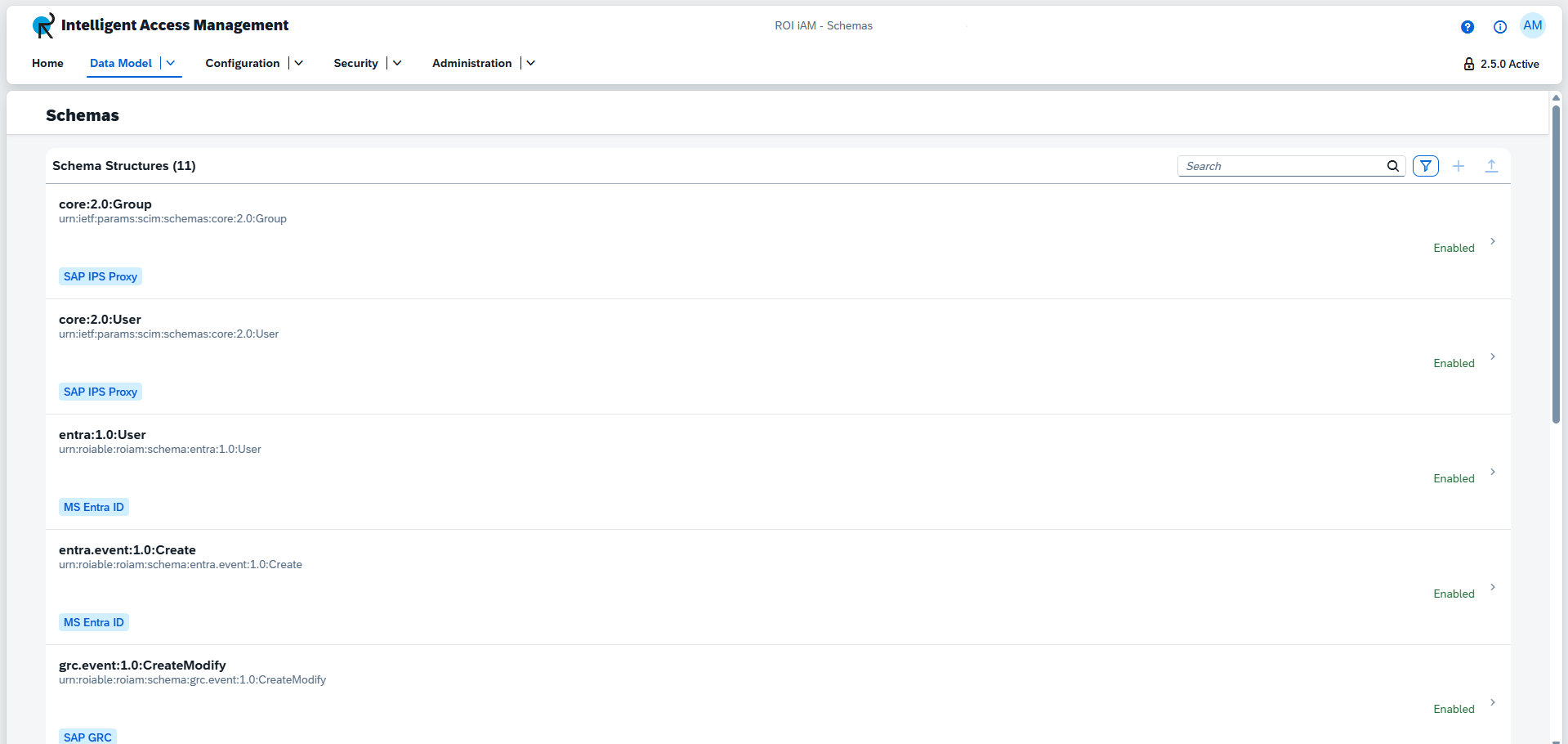
Schemas have the following properties:
INFO
The presented values for name and identifier are only meant as examples.
- Name - e.g.
core:2.0:Group - Identifier - e.g.
urn:ietf:params:scim:schema:core:2.0:Group - Status - Can be
EnabledorDisabled - Bound repository types
- Read only - Some schemas are read-only. This is indicated by an icon next to the schema name.
Creating a schema
To create a new schema:
- Press the Create button, located next to the search and filter buttons.
- Choose whether the identifier should be automatically generated or manually defined. Using the toggle will change the create dialog based on the selection.
INFO
When using an automatically generated identifier, it will always be prefixed with
urn:roiable:roiam:schema:and include the category, version, and name. A schema identifier can contain up to 255 characters. - Enter a Name. - This field is mandatory. The name should start with a capital letter and may include colons, dots, or letters (A–Z, a–z). The name becomes part of the schema identifier.
- Enter a Category. - This field is mandatory and can contain up to 25 characters.
- Enter a Version. - This field is mandatory. It can include only numbers and dots (e.g.,
1.0or111.111.111). - Click Create to finalize the process.
Details view
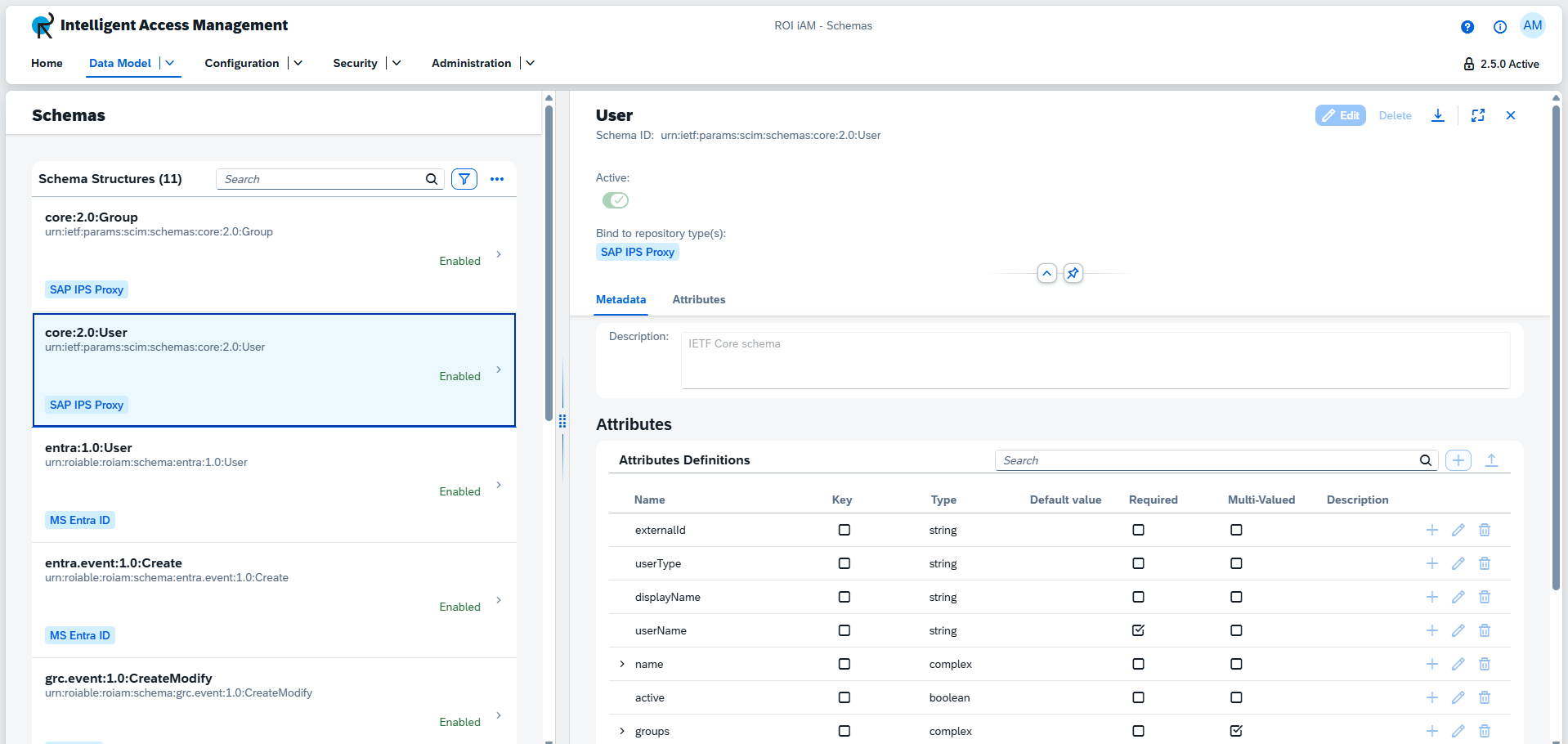
The details view provides an overview of the schema status, properties, and attributes. These can also be edited when the schema is not read-only, and when on a non-active version or revision. The name and identifier cannot be modified once the schema is created.
The controls for the details view are located in the upper-right corner of the details view. From left to right, the buttons are:
- Edit - Enters edit mode, allowing you to modify the schema’s properties and attributes.
- Delete - Deletes the schema.
- Export - Exports the schema.
Edit mode
- The Active toggle enables or disables the schema.
- Bound repositories can be edited by opening the Repository Types dialog (accessible from the input field) and selecting the applicable repository types. Selected repositories appear as blue tags. There is no limit to the number of selections.
- The Description field can also be updated. This field cannot be left empty.
Attributes
Attributes can be added, modified, and deleted.
Each attribute has the following properties:
- Name
- Key - Indicates whether this is a key attribute.
- Type - Available types include: string, boolean, decimal, integer, dateTime, reference, binary, and complex.
- Default Value
- Required - Indicates whether the attribute is mandatory.
- Multi-Valued - When enabled, the attribute can hold multiple values.
- Description
To create a new Attribute
- Click Add to open the creation dialog.
- Enter a Name – This field is mandatory. Attribute names are case-sensitive and must match the original attribute name.
- Select a Parent attribute (if applicable). Only attributes of type complex can serve as parent attributes.
- Select the Type – This field is mandatory.
- When all required fields are completed, click Add.
After clicking Add, the new attribute appears in the Attribute Definitions table.
To edit an attribute
- Click Edit next to the attribute.
- Apply the desired changes.
- Click OK to confirm.
INFO
An attribute name can be changed immediately after creation and before saving the schema using the Save button.
TIP
To delete an attribute, click Delete next to the attribute.
All changes are saved only after clicking the Save button in the upper-right corner of the details view. Closing the details view or pressing Cancel exits edit mode and discards any unsaved changes.