
Modifying and Creating a version or revision
Change the status of a version or revision
To change the status of a version or revision, a user needs to select the arrow button on the version and select "Change Status": 
The dropdown displays a list of available status options: 
Available Options:
- Ready versions can become Active or Archived
- Inactive versions can become Ready or Archived
- Working versions can become Ready or Archived
- Personal revisions can become Ready or Archived
- Shared revisions can become Ready or Archived
- Imported revisions can become Ready or Archived
Create a version
INFO
Creating a version manually is only possible for Working versions.
To create a new version, the user needs to use the "Create Working Version" button on the right side of the Staging category. This will open the "Create Version" dialog.
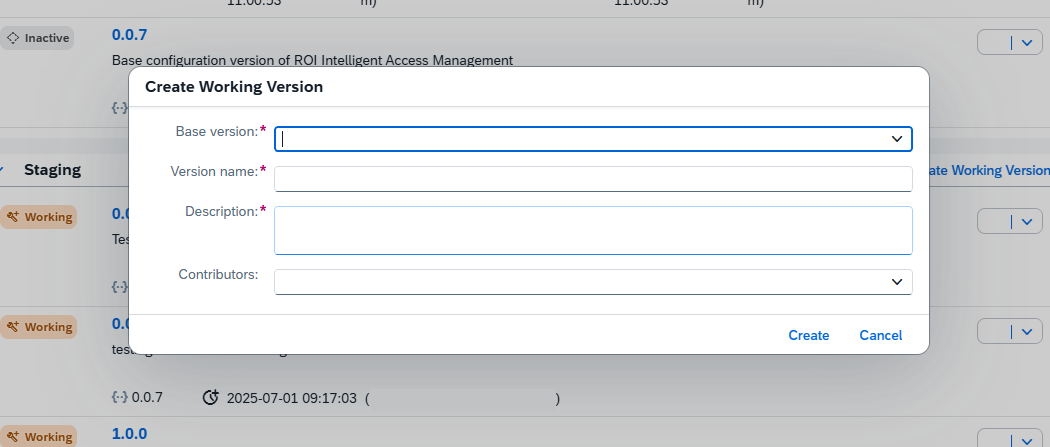
- Base version – This field is mandatory. The base version needs to be picked from the available options in the dropdown.
- Version name – This field is mandatory. The version name should start with numeric input (dot notation up to 14 characters) optionally followed by an alphabetical input (lower and upper case characters without spaces up to 50 characters) separated with a dash “-”. Total length of the version name cannot exceed 64 characters. It should be unique within the ROI iAM instance and the numeric part must be higher than the base version. Example:
1.0.1-roiamDev. - Description – This field is mandatory. The description can be up to 1024 characters long.
- Contributors - Contributors can be picked from the available users in the dropdown. There is no limit to how many contributors can be added to a version.
Create a revision
To create a new revision, the user needs to use the Create Revision button on the right side of the Revisions category. This will open the Create Revision dialog.
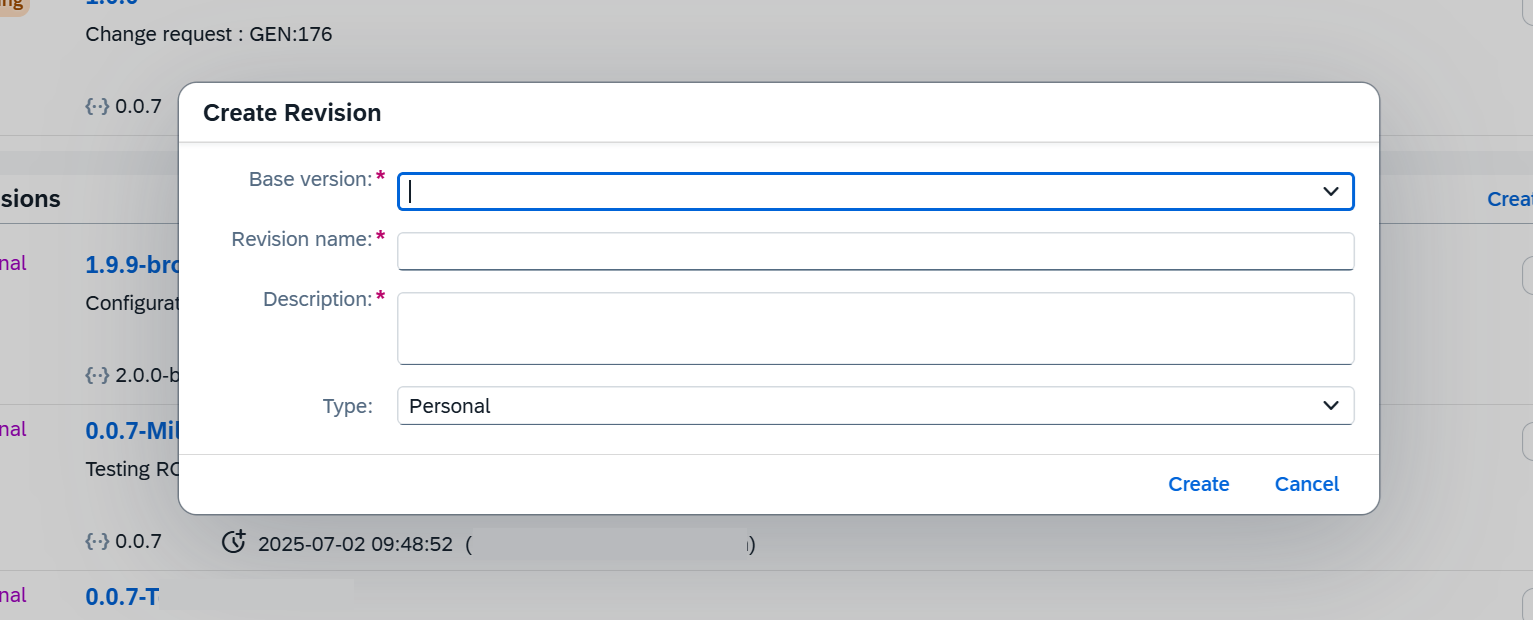
- Base version – This field is mandatory. The base version needs to be picked from the available options in the dropdown.
- Revision name – This field is mandatory. The version name should start with numeric input (dot notation up to 14 characters) optionally followed by an alphabetical input (lower and upper case characters without spaces up to 50 characters) separated with a dash “-”. Total length of the version name cannot exceed 64 characters. It should be unique within the ROI iAM instance and the numeric part must be higher than the base version. Example:
1.0.1-roiamDev. - Description – This field is mandatory. The description can be up to 1024 characters long.
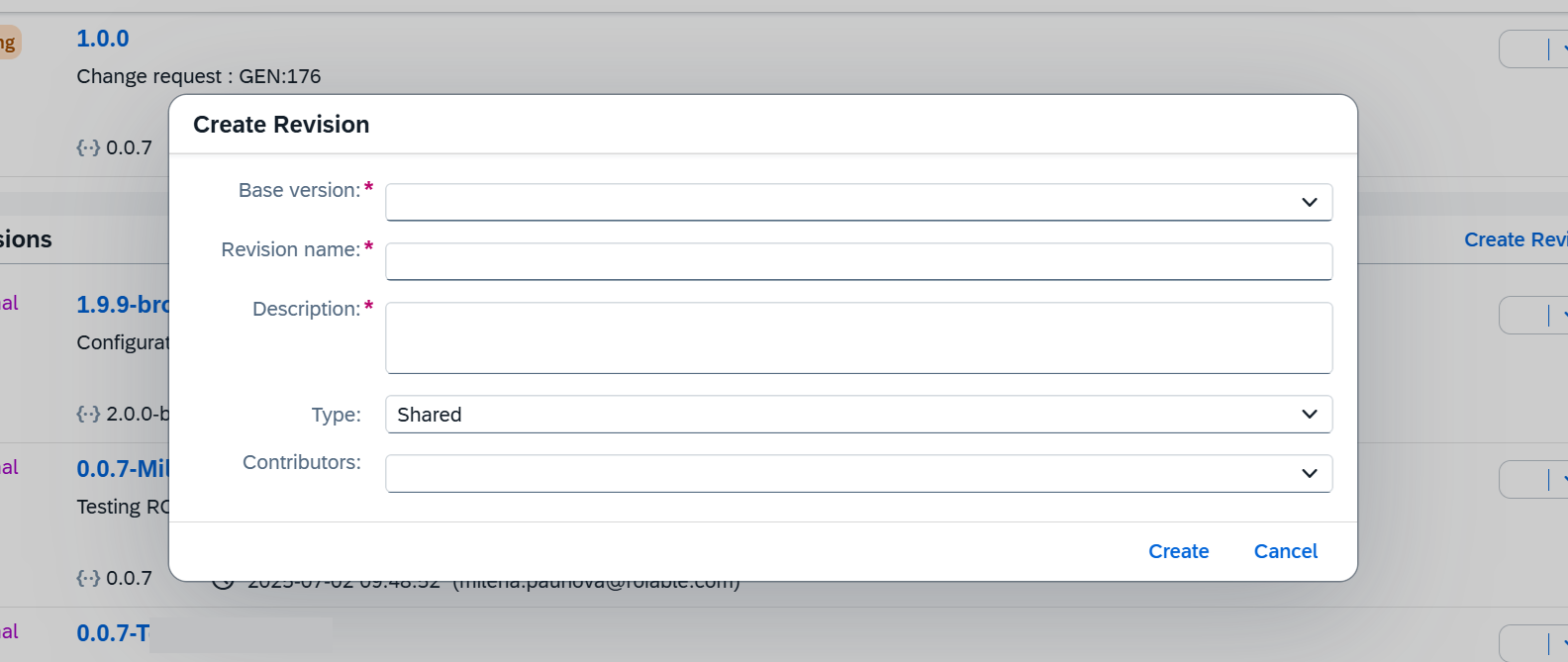
- Type - This field is mandatory. The type needs to be selected from one of the available options in the dropdown, which are: Personal and Shared.
- Contributors - Available only for Shared revision. Contributors can be picked from the available users in the dropdown. There is no limit to how many contributors can be added to a version.
Edit a version
Editing a version is only possible for Working versions.
IMPORTANT
Users can edit only Working versions they own. If the user is not the owner, the Edit button does not appear.
The Edit button is located in the dropdown menu on the right side of the version.
Only Description and Contributors can be changed for a Working version. The same restrictions and validation apply as when creating a version.

Edit a revision
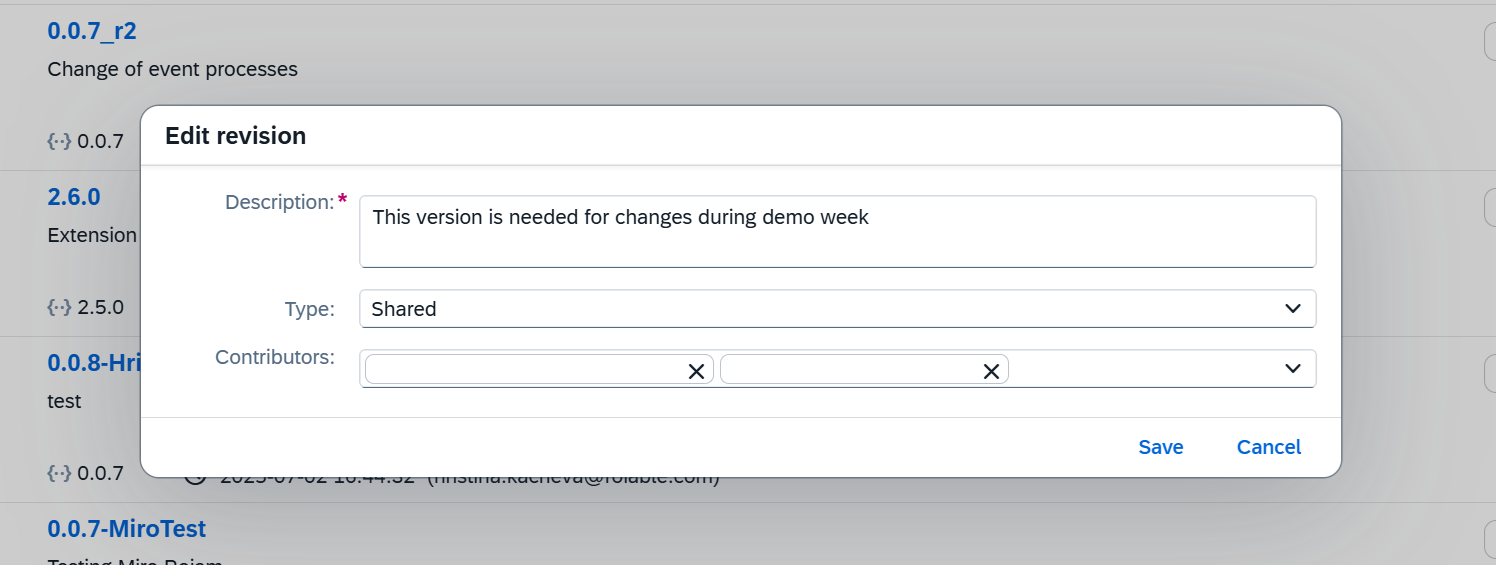
Editing a revision is only possible for Personal and Shared revisions.
IMPORTANT
Users can edit only revisions they own. If the user is not the owner, the Edit button does not appear.
The Edit button is located in the dropdown menu on the right side of the revision.
Description, Type, and Contributors can be changed. For example, a revision can be switched from Shared to Personal and vice versa. If the revision is Personal there are no contributors and the field is not present. The same restrictions and validation apply as when creating a revision.
Delete a revision
Deleting a revision can be done for all type of revisions (Personal, Shared, Imported, and Product). The "Delete" button from the menu on the right side of the revision.
INFO
Currently this feature is under development and the Delete buttons is disabled.