
Comparison
The Comparison view is used to review the changes between two versions or revisions. It is accessible by selecting a version from the list in the Change Management main view. By default, when the Comparison view opens, the selected version is automatically compared to its base version.
TIP
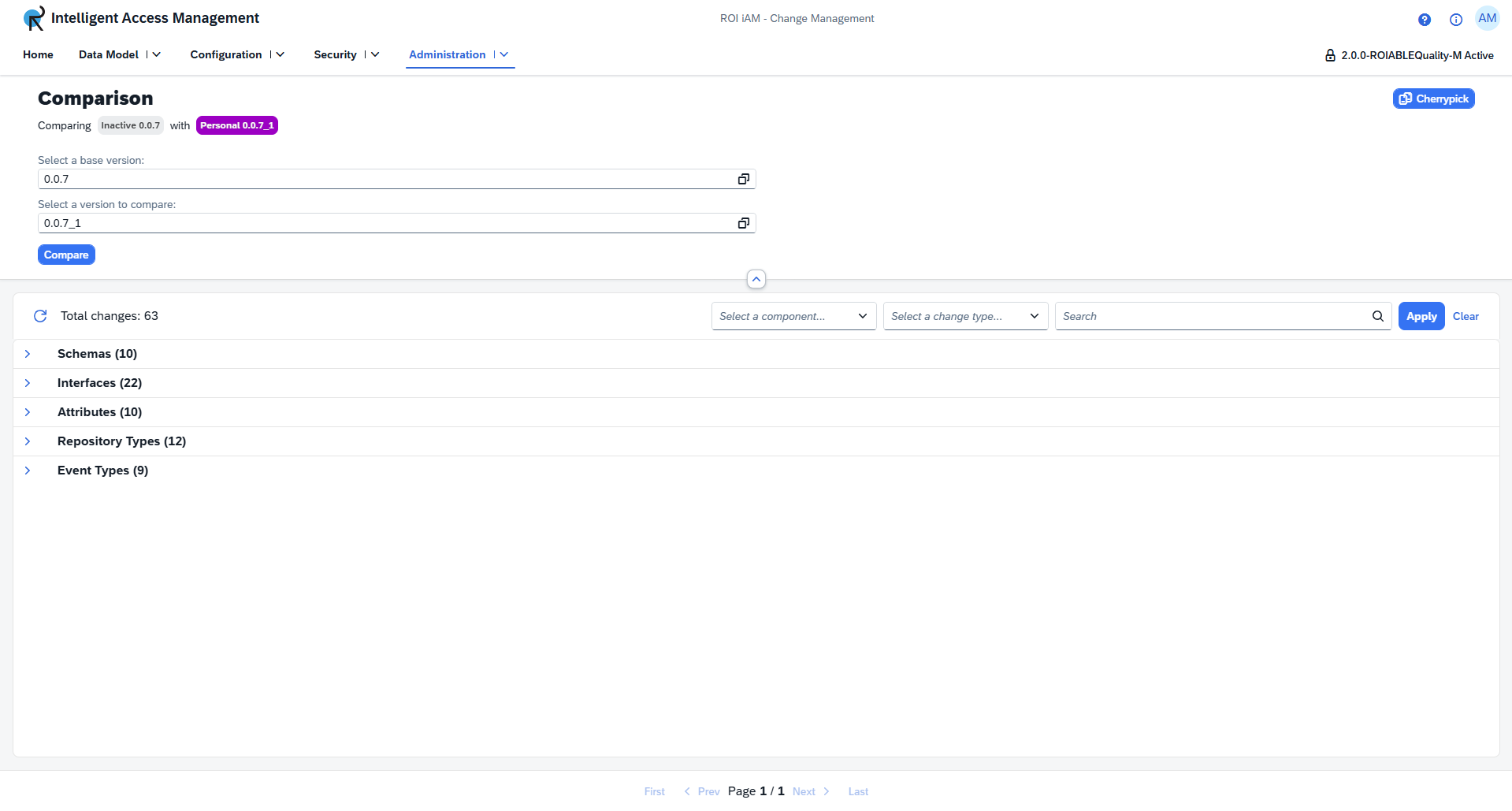
If no base version is available for the selected item, the user is prompted to choose a version or revision for comparison.
Version selection
The compared versions can be changed at any point from the input fields at the top of the page. A comparison requires both a base version and a version to compare with. Selecting either of those fields will open a dialog, listing all available versions to choose from. After choosing both versions, pressing Compare displays all differences, grouped into seven categories.
Comparison table
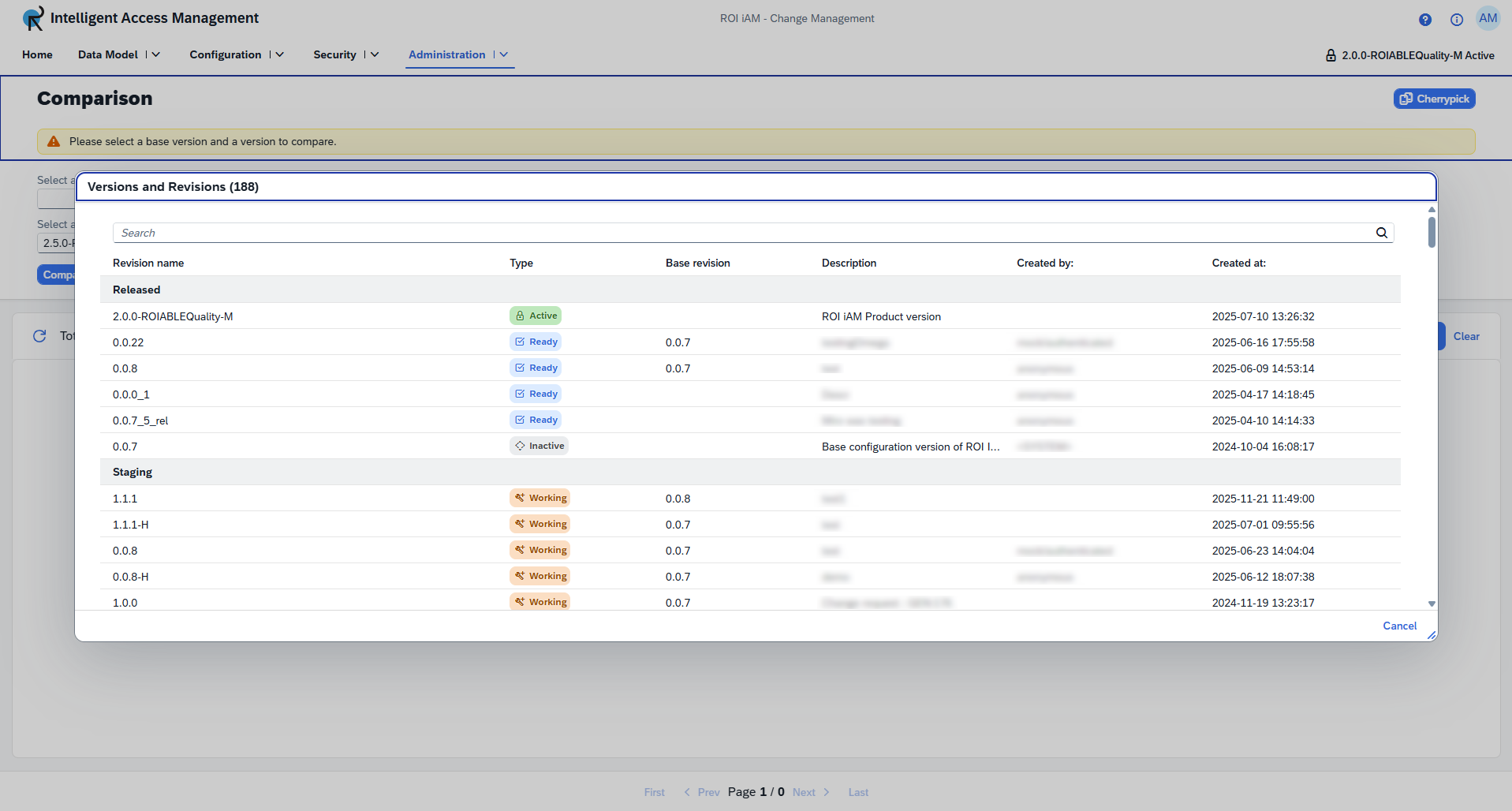
The Comparison displays shows changes across seven categories: Schemas, Interfaces, Attributes, Model Entities, Repository Types, Processes, Event Types.
Each category lists the items that have changed, along with their change type: Added, Modified or Deleted. The change type is represented by an icon in the respective color for the change.
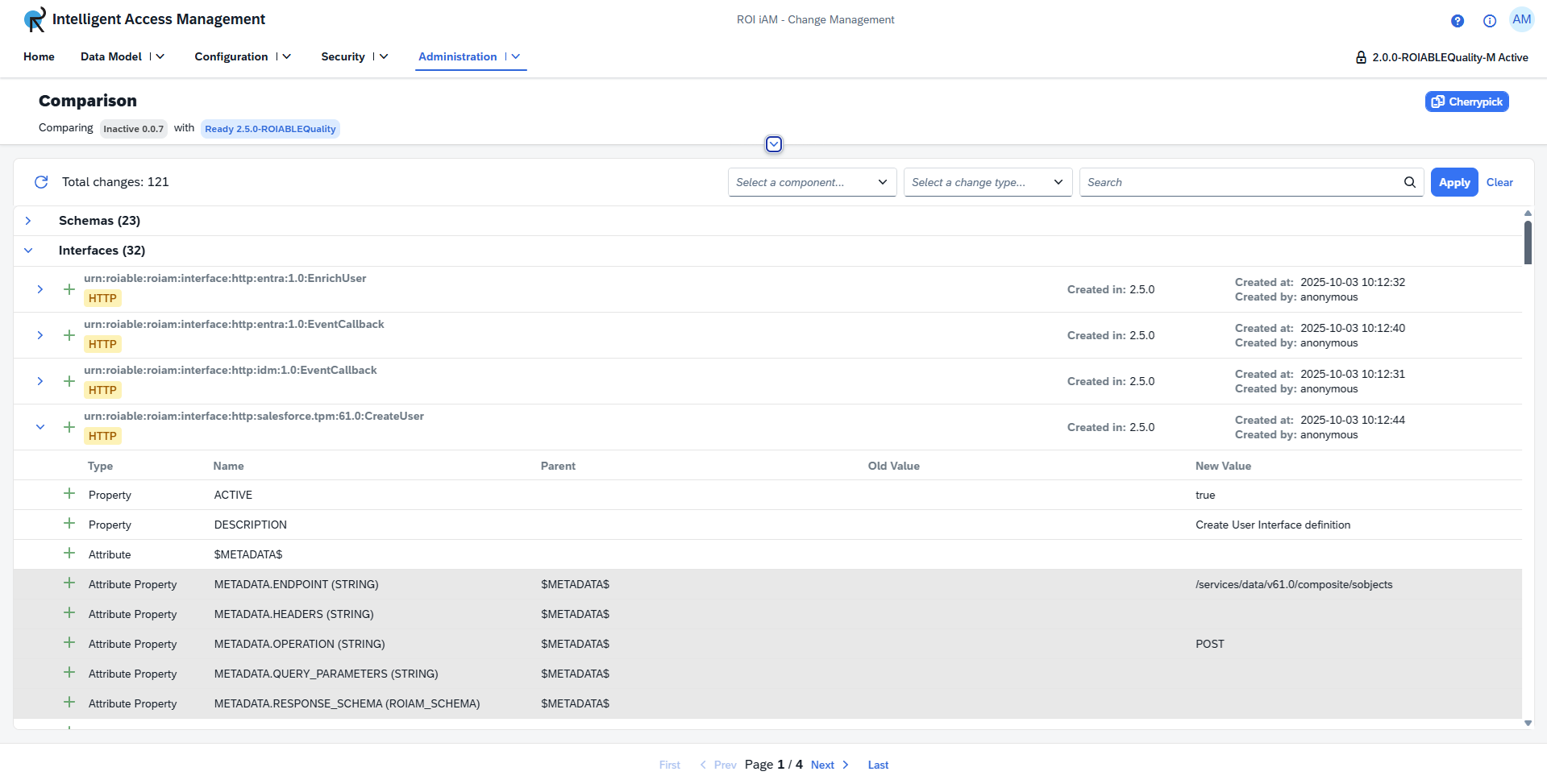
All items share a set of common properties, shown when a category is expanded:
- Change Type
- Name or identifier
- Created in - This property refers to the version or revision where the object or item was originally created in.
- Created at and Created by
- Modified at and Modified by
INFO
If information about creation or modification is not available, the corresponding labels are omitted.
Each category may also expose category-specific properties:
- Read only - Available for Schemas, Interfaces and Attributes. When applicable, it appears as a label next to the identifier.
- Interface Type - Available for Interfaces, shown as a tag (e.g.
HTTP) under the identifier. - Status changed at and Status changed by - Available for Repository Types.
- Origin - Available for Event Types, shown as a
SOURCEorTARGETtag.
Expand
Each item can be expanded to show a detailed breakdown of its internal changes. These details include additional attributes and properties, presented in a flat table with the following columns:
- Change Type
- Type (e.g. "Property", or "Attribute")
- Name
- Parent
- Old Value
- New Value