

Process Tasks
Overview
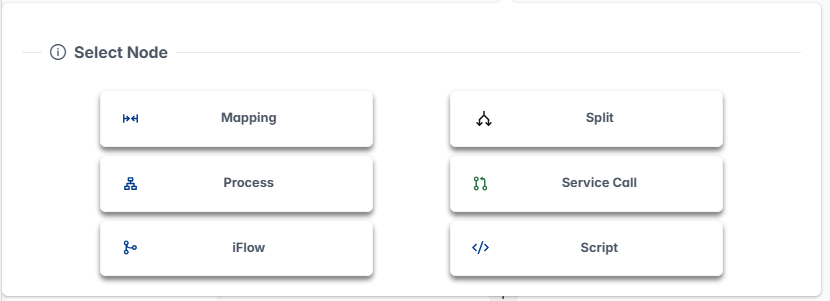
Tasks fall into two groups:
- Flow control — the structural tasks that shape a process: where it begins and where it needs to logically split. These are the Start, Split.
- Execution — the working steps that get things done, such as calling an external service, running a script, converting data, or reusing another process. These are the Service Call, Process, Script, Mapping, and iFlow.
Every process has exactly one Start task and exactly one End task. Between them, execution runs in sequence.
Common settings
Every Execution step shares the following settings in its configuration panel. Flow control steps expose only some of these — see each task below for its specific settings.
| Setting | What it does |
|---|---|
| Enabled | Switches the step on or off. Turn a step off to temporarily take it out of the flow without deleting it — the process runs as if the step were not there. |
| Name | The label shown for the step on the canvas. Give each step a clear, distinct name so the diagram is easy to read; names must be unique within the process and up to 50 characters long. |
| Annotation | A free-text note describing what the step is for. It appears on the canvas to help you and other designers understand the process at a glance, and has no effect on how the process runs. |
Start
The Start task is where every process begins. It is created automatically with a new process and cannot be deleted.
Nothing connects into the Start task — it is the first step. Here you decide what data the process works on and what values are available throughout.
Process input
Describes the information the process receives when it runs:
- Type – The kind of business object the process starts with, either an entity or a schema (for example, an identity or a group).
- Schema – The specific definition of that object, so the process knows which fields it can work with.
- Context object – The name the incoming data is given inside the process. Later steps use this name to refer back to it.
Allowed headers
Defines values that are available to every step in the process, no matter where they sit in the flow. Configuration or contextual values that several steps need can be defined here once rather than repeated at each step. Each entry has:
- Name – The name of the value.
- Default Value – The value to use when the caller does not supply one.
TIP
Values defined here can be read by any step in the process. Use this section for settings or contextual information that several steps need to share.
Split
The Split task is how a process makes a decision. It checks the conditions you define and sends the flow down one of two or more branches.
The Split task configuration panel has these sections:
General
| Setting | What it does |
|---|---|
| Enabled | Switches the step on or off. |
| Name | The label shown on the canvas; unique within the process, up to 50 characters. |
| Annotation | A free-text note describing the decision, visible on the canvas. |
Conditions
Each row in the Condition table is one path the process can take. The columns are:
| Column | What it does |
|---|---|
| Label | The name of the condition. |
| Condition | The rule that decides whether this condition is taken. When the rule is met, the flow follows this condition. The default condition does not need a rule or expression, because it is taken whenever no other condition applies. |
| Default | Marks one condition as the fallback. It is taken when none of the other conditions' expressions are met. Exactly one condition must be the default; its label is shown with a * on the canvas. |
Condition rules:
- A Split task requires at least two conditions.
- A condition can be deleted only when three or more exist.
- Add a condition with the
+button in the table header. - Exactly one condition must be the default at all times. If you clear the current default, the first condition automatically becomes the default.
WARNING
When none of the other conditions' conditions are met, the process always falls back to the default condition. Make sure the default condition is the correct thing to do when nothing else applies.
Service Call
The Service Call task reaches out to an external system or service — for example, to look something up, create a record, or trigger an action in another application — and brings the reply back into the process.
Input
| Setting | What it does |
|---|---|
| Context object | The data from an earlier step that you want to send to the service. |
| Interface | Which service to call, chosen from the interfaces set up in the system. |
| Request mapping | The conversion to apply to the input data, chosen from the mappings set up in SAP Cloud Integration. |
| Repository | The target system the call is directed to. |
| Headers | Extra header values sent along with the call. |
Service output
In addition to the standard response settings:
| Setting | What it does |
|---|---|
| Service output | The conversion to apply to the output data, chosen from the mappings set up in SAP Cloud Integration. |
Prerequisite
Available mappings are extracted from SAP Cloud Integration packages tagged with Mapping = true
Process
INFO
The Process task is still in development and will be released in a future version.
Script
The Script task runs a prepared script to handle custom logic that the other steps do not cover — for example, a calculation, a validation check, or enriching the data before it moves on.
Prerequisite
Available scripts are retrieved from SAP Cloud Integration packages tagged with Scripts = true
Input
| Setting | What it does |
|---|---|
| Context object | The data from an earlier step to pass to the script. |
| Script name | The prepared script to run, chosen from the available scripts. |
| Script method | The name of the part of the chosen script to run. Enter the method name provided by whoever prepared the script. |
| Headers | Extra header values passed to the script alongside the data. |
The result is described in the standard response settings.
Mapping
The Mapping task converts data from one shape to another using a mapping that has already been set up in SAP Cloud Integration. Use it when a later step needs the same information arranged differently from how an earlier step produced it.
Input
| Setting | What it does |
|---|---|
| Context object | The data from an earlier step to convert. |
| Message mapping | The conversion to apply, chosen from the mappings set up in SAP Cloud Integration. |
| Headers | Extra header values passed alongside the data. |
Prerequisite
Available mappings are extracted from SAP Cloud Integration packages tagged with Mapping = true
The result is described in the standard response settings.
iFlow
The iFlow task hands a message off to SAP Cloud Integration, letting the process trigger an integration flow.
Input
| Setting | What it does |
|---|---|
| Context object | The data from an earlier step to send as the message. |
| Address | The ProcessDirect address invoked. This value determines which target iFlow is triggered. |
| Headers | Extra header values included with the message. |
The result is described in the standard response settings.
Response of execution tasks
Every execution task (Service Call, Process, Script, Mapping, and iFlow) describes its result in a Response section, so the rest of the process knows how to work with it:
| Setting | What it does |
|---|---|
| Type | The kind of business object this step produces — an entity or a schema — so later steps know what to expect. |
| Schema | The specific definition of that object, so later steps know which fields they can work with. |
| Context object | The name the result is given inside the process. Later steps refer back to the result by this name, so choose something clear and recognizable. |
| Array | Turn this on when the step can return more than one result — so the result is treated as a list rather than a single item. |