

Directory view
The directory view is the main entry point for navigating the Processes section. It lists all folders and processes available in the currently selected version or revision, and provides actions for creating, editing, and deleting them.
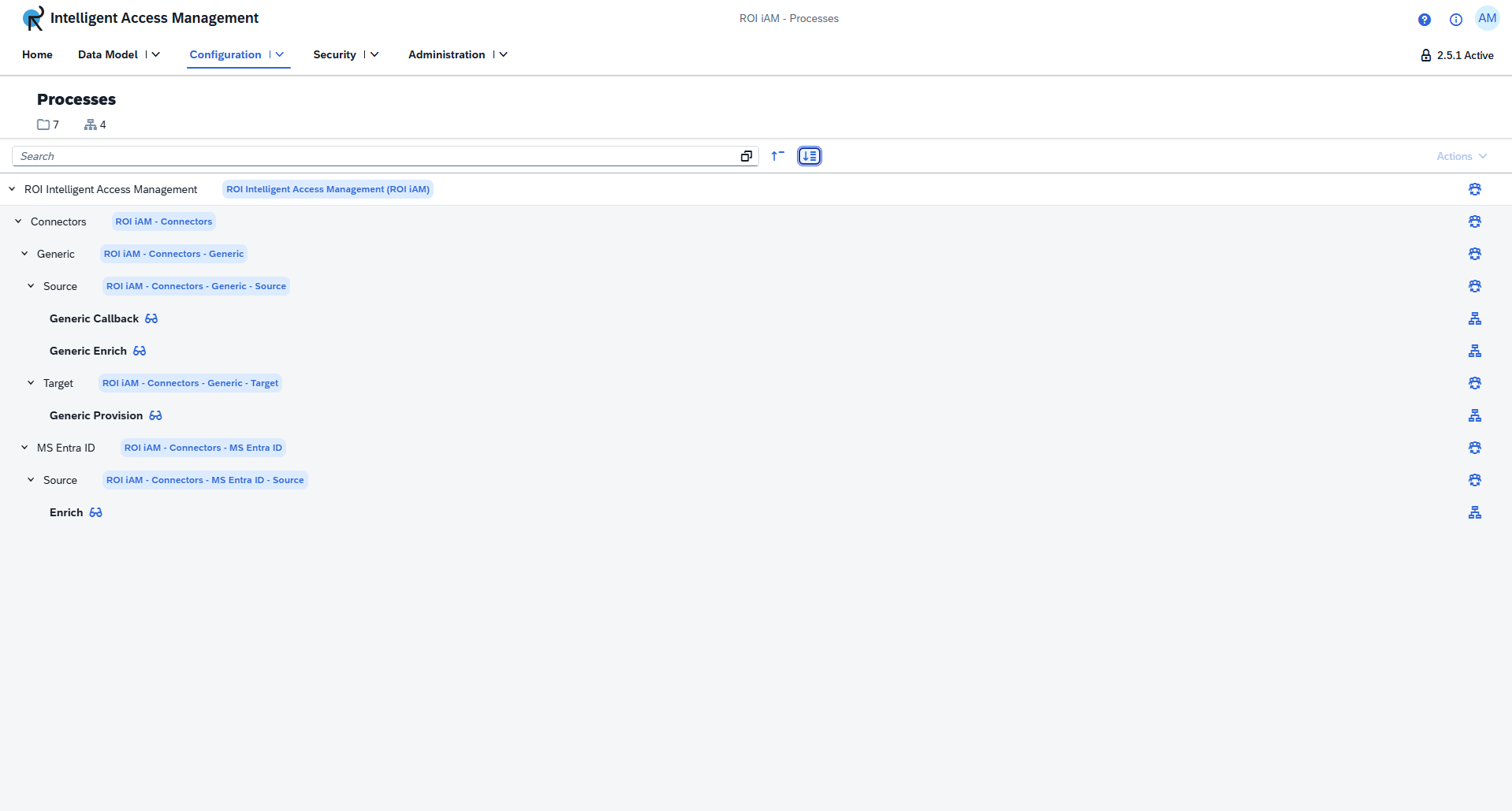
At the top of the component, the total number of folders and processes is shown. A search bar is available below it, opening a dedicated search dialog that helps locate folders or processes by name.
Folders display both their display name and technical name. The technical name appears in a blue tag, and a contributor list can be accessed through the contributor button on the right.
Processes include a Display button, which opens the process details, and a Dependencies button, which opens a dialog presenting all related resources in a categorized layout.
Folders
Create a folder
Creating a folder establishes a container that groups related processes and defines which contributors can operate within it.
To create a new folder:
- Select the folder under which you would like to create it.
- Click the Actions button, located next to the search field.
- Click Add folder.
- Enter a Name — this field is mandatory.
- Enter a Technical name — this field is mandatory and the technical name must be globally unique.
- Select the contributors who will be able to operate in the folder.
- Enter a Description — this field is mandatory and can be up to 255 characters.
INFO
Contributor selection is not mandatory. When left unselected, everyone with access to Processes is chosen.
Edit a folder
To edit a folder:
- Select the folder.
- Click the Actions button, located next to the search field.
- Click Edit.
INFO
The following properties can be modified:
- Name
- Contributors (add or remove)
- Description
The Technical name cannot be modified after creation.
Delete a folder
To delete a folder:
- Select the folder.
- Click the Actions button, located next to the search field.
- Click Delete.
View folder contributors
To view the contributors assigned to a folder, click the contributor icon on the folder row in the directory tree.
Processes
Create a process
To create a new process:
- Select the folder under which you would like to create it.
- Click the Actions button, located next to the search field.
- Click Add process.
- Enter a Name — this field is mandatory.
- Enter a Technical name — this field is mandatory and the technical name must be globally unique.
- Enter a Description — this field is mandatory and can be up to 255 characters.
INFO
Creating a process automatically opens the details view.
Delete a process
To delete a process:
- Select the folder containing the process.
- Click the Actions button, located next to the search field.
- Click Delete.
View process dependencies
To view the dependencies of a process, click the dependencies icon at the end of the process row in the directory tree. All linked objects are displayed in a categorized dialog.
View process details
To open the details of a process, click the display icon next to the process name in the directory tree. This opens the Process designer canvas.