

iFlows
Within the delivered SAP Cloud Integration packages, there are iFlows that require configuration before their deployment. This chapter covers this step.
ROI iAM - Public events inbound consumer with aggregation
The iFlow is part of the "ROI iAM - Core - Event consumers" package and defines a number of configurational properties, as follows:
A time interval that determines how often events are processed from the incoming queue.
- The default configuration is every 5 minutes.
TIP
For a test environment, this might be acceptable, but it can also be reduced. For a production environment, we recommend a value of every 30 seconds.
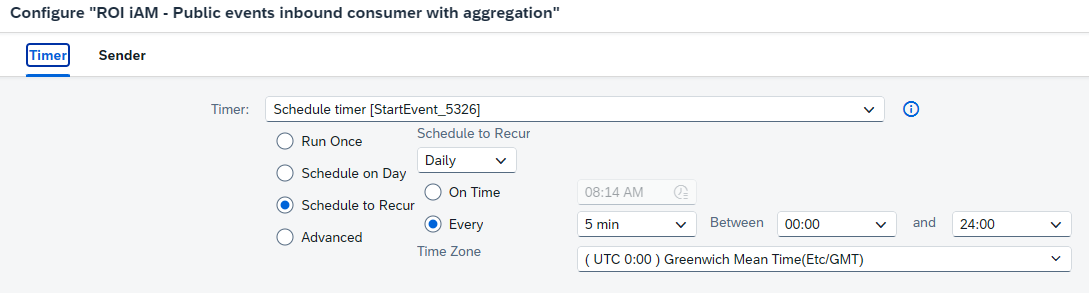
- The host and credentials for the inbound public queue:
TIP
For "Host", navigate to the SAP Cloud Integration subaccount and look for an instance of "SAP Integration Suite, Event Mesh" with plan "message-client". Click on the available service key and look for the "messaging" array with an element called "protocol" and value "amqp10ws". Within that array element, copy the "uri" value, but without the protocol and without the path suffix at the end. Use only the host name as "Host".
The "Credential Name" can follow your naming convention, but we highly recommend using ROI_iAM as a prefix. Below is our recommendation.
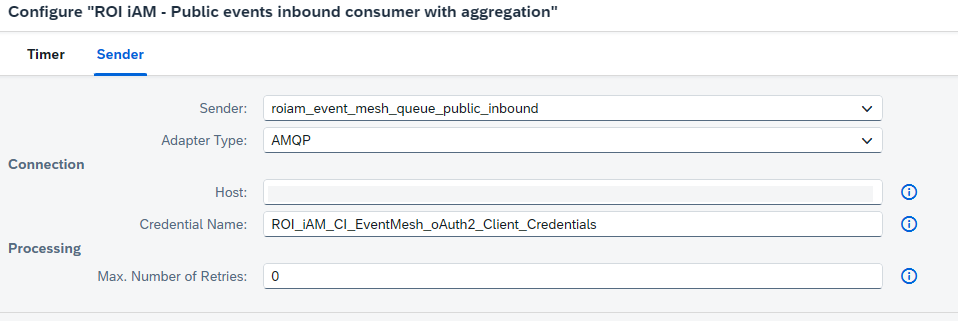
TIP
If the credential name does not exist yet, you will have to create it within the security materials of SAP Cloud Integration. If the credential name already exists, you can skip the steps below.
Navigate to Monitor -> Integrations and APIs and click on the tile called "Security Material".
Before creating the entry, verify if it already exists by searching for its name. If it does not exist, proceed.
Click the Create button and select OAuth2 Client Credentials:
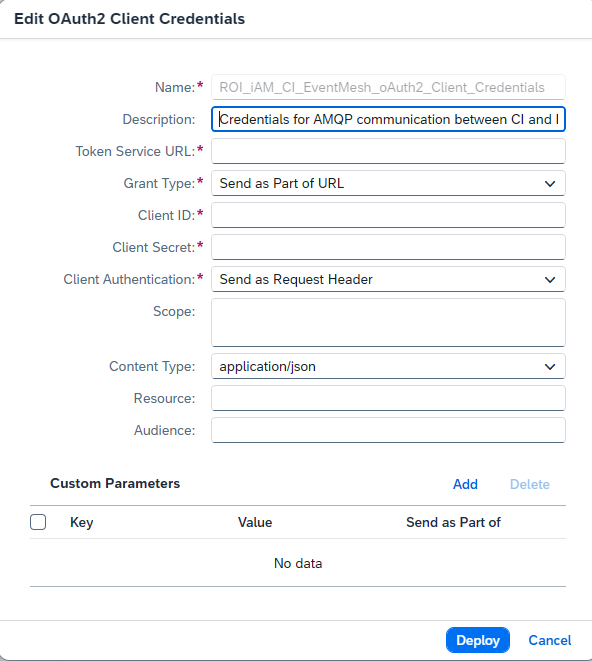
Enter the name, which matches the credentials name in the configuration of the iFlow.
For description, use: Credentials for AMQP communication between CI and Event Mesh.
The "Token Service URL", "Client ID", and "Client Secret" can all be derived from the same service key where you obtained the "Host" property for the iFlow. They should be taken from the same messaging array element and have the following attribute names:
"tokenendpoint" → Token Service URL
"clientid" → Client ID
"clientsecret" → Client Secret
After finalizing the configurational properties, save and deploy the iFlow.
After deployment of this iFlow, you might receive some errors in the message monitor, but these can be ignored. They will stop appearing once you deploy all the remaining iFlows from the imported Integration packages.
ROI iAM Customer - Event Mesh routing
The iFlow is within the "ROI iAM Customer – Common" package and is responsible for routing the various processes that are triggered by the events. Similar to the previous setup, enter the "Host" and "Credential Name", which are exactly the same as in the previous setup:
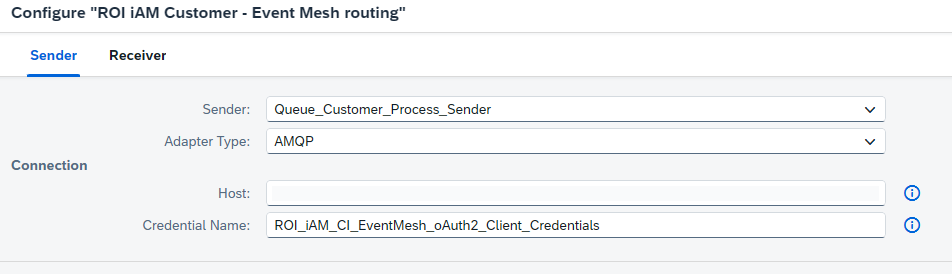
After finalizing the configurational properties, save and deploy the iFlow.
ROI iAM - Framework - Scheduler
The iFlow is within the "ROI iAM - Core – Common" package and is responsible for scheduling other iFlows. It has a timer that must be configured before deployment. It defines the frequency of the smallest interval at which the iFlow checks for pending scheduled iFlows. The configuration of the scheduled iFlows is made through the Partner directory and is explained in the respective configuration chapter → Partner directory configuration

After finalizing the configurational properties, save and deploy the iFlow.
After deployment of this iFlow, you might receive some errors in the message monitor, but these can be ignored. They will stop appearing once you configure the Partner directory entries.
ROI iAM – MS Entra – Incoming Event Mapping (applicable only for the Entra accelerator)
The iFlow is within the "ROI iAM - Connector – MS Entra" package and is responsible for facilitating the input mapping for the incoming MS Entra structure to ROI iAM schemas. The mapping handles dynamically most of the attributes, but it requires specifying which MS Entra attribute acts as the unique identifier in ROI iAM. Therefore, there are two externalized parameters, which need to be configured before deployment. Those are:
- ROI iAM Entra Create Attribute identifier - This value is the JSON path to the attribute used for identification, followed by
{header}, which indicates that the iFlow stores the attribute’s value in the header. - ROI iAM Entra Create Attribute name - Use the same JSON path as above, but this time place the name of the header attribute inside the curly brackets:
{roiam_scim_entity_filter}. Do not change this name.
Once these are updated, you can deploy the iFlow.