
Exercise 4: Cross-system risk analysis
What you'll do
Build an access request that combines conflicting roles from three systems — SAP S/4HANA, SAP BTP, and Salesforce — then run a risk analysis and watch ROI iAM and SAP GRC flag the segregation-of-duties (SoD) conflict across all three. You won't submit the request; the point is to see the result.
Add the three conflicting roles
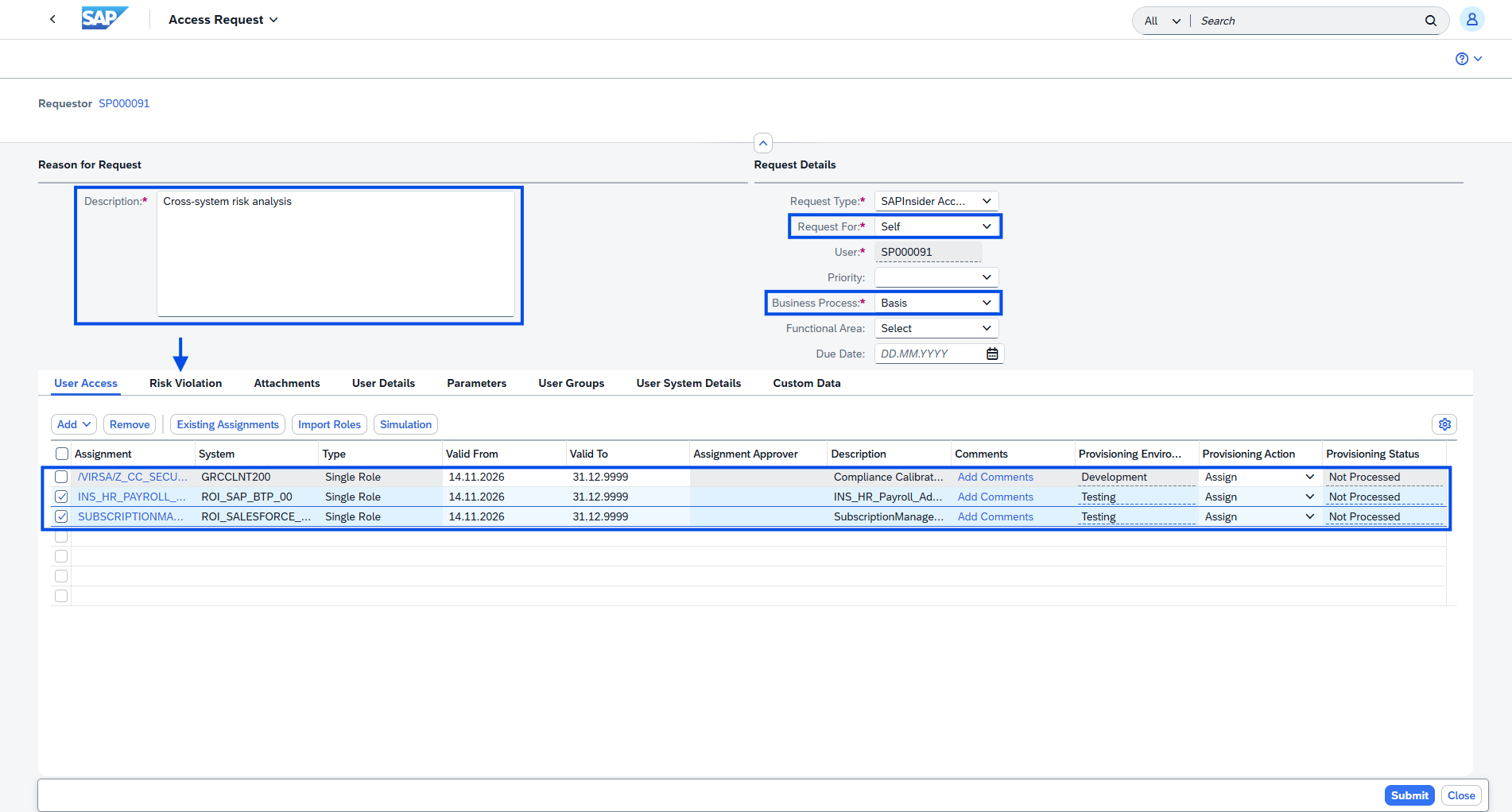
- In the SAP GRC Fiori Launchpad, open the Access Request tile. Set Business Process to
Basisand add a description. - In the User Access section, click Add → Role and add the SAP S/4HANA role (Security administrator):
- System –
GRCCLNT200 - Role / Profile Name –
/VIRSA/Z_CC_SECURITY_ADMIN - Select it and click the down arrow (∨) to Add, then OK to confirm.
- System –
- Click Add → Role again and add the SAP BTP role (Payroll Administrator):
- System –
ROI_SAP_BTP_00 - Role / Profile Name –
INS_HR_Payroll_Admin - Select it and click the down arrow (∨) to Add, then OK to confirm.
- System –
- Click Add → Role a third time and add the Salesforce role (Payment Administrator):
- System –
ROI_SALESFORCE_TEST - Role / Profile Name –
SubscriptionManagementBillingOperations - Select it and click the down arrow (∨) to Add, then OK to confirm.
- System –
💡 Everyone uses the shared
ROI_SAP_BTP_00system here on purpose.
Run the risk analysis
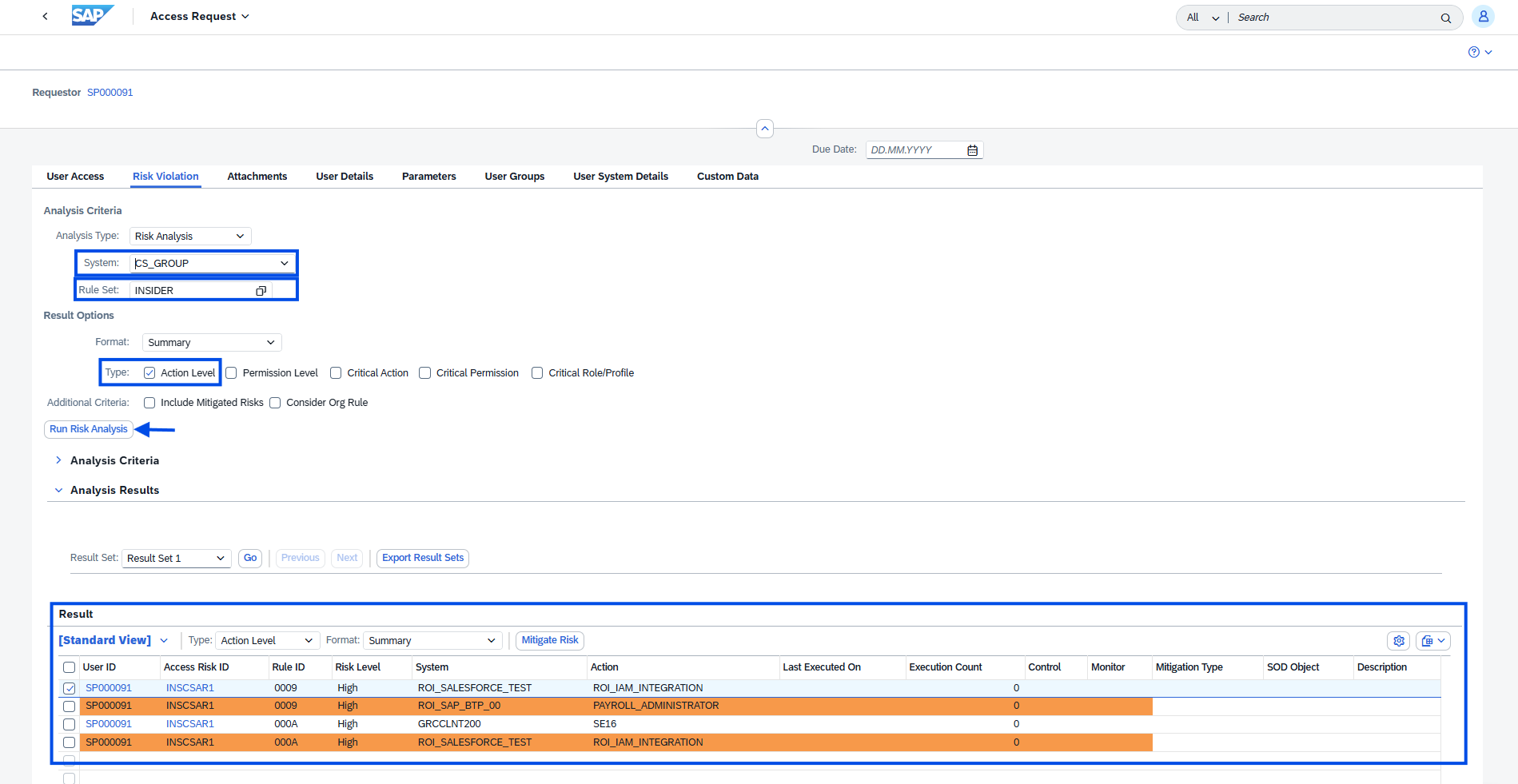
- Do not submit. Click Risk Violation and set:
- System –
CS_GROUP - Rule set –
INSIDER - Result options → Type –
Action level
- System –
- Click Run Risk Analysis.
💡 The results table flags the cross-system risk — two conflicting actions across
GRCCLNT200,ROI_SAP_BTP_00, andROI_SALESFORCE_TEST. - Close the pop-up. Do not submit the request — this exercise ends here.
💡 Any connected system can be enabled for cross-system risk analysis the same way.
Next
Continue with Exercise 5: User Access Review of SAP S/4HANA and SAP BTP access with SAP GRC.