

Exercise 1: Extend your SAP S/4HANA access
What you'll do
Give yourself the additional set of Fiori tiles in SAP S/4HANA that you'll need for the next exercises — through SAP GRC 2026. Because you're requesting access for your own user and the role carries no risk, it's granted instantly, with no approval step.
Log in
Open the SAP GRC Fiori Launchpad and log in with:
Field Your value User SP0000NNPassword <workshop-password>— provided at the session
Build and submit the request
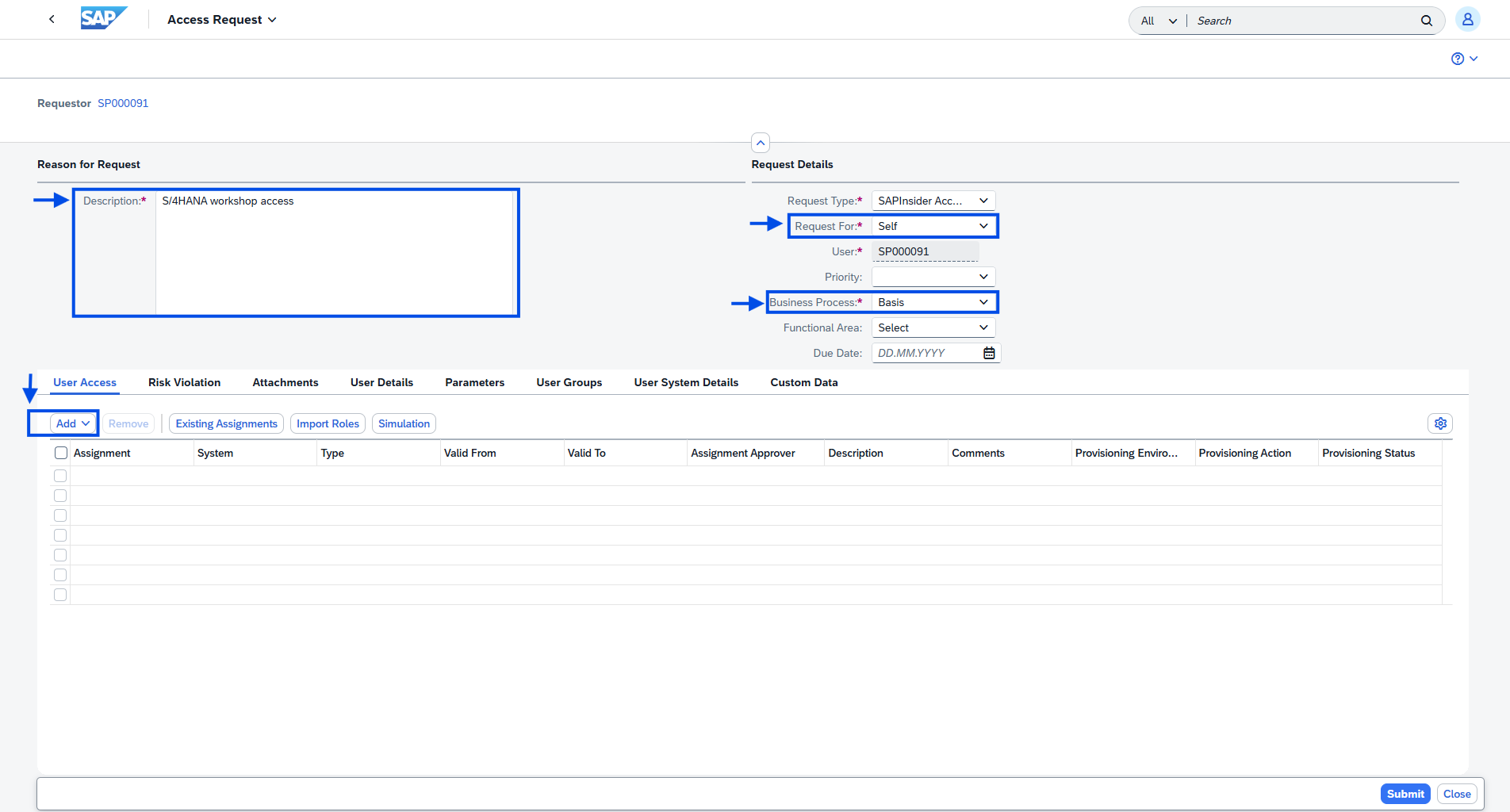
- Click the Access Request tile. The request is already set to Self (you're requesting for your own user).
- Fill in the Reason for Request:
- Description –
S/4HANA workshop access
- Description –
- Fill in the Request Details:
- Business Process –
Basis
- Business Process –
- In the User Access section, click Add → Role.
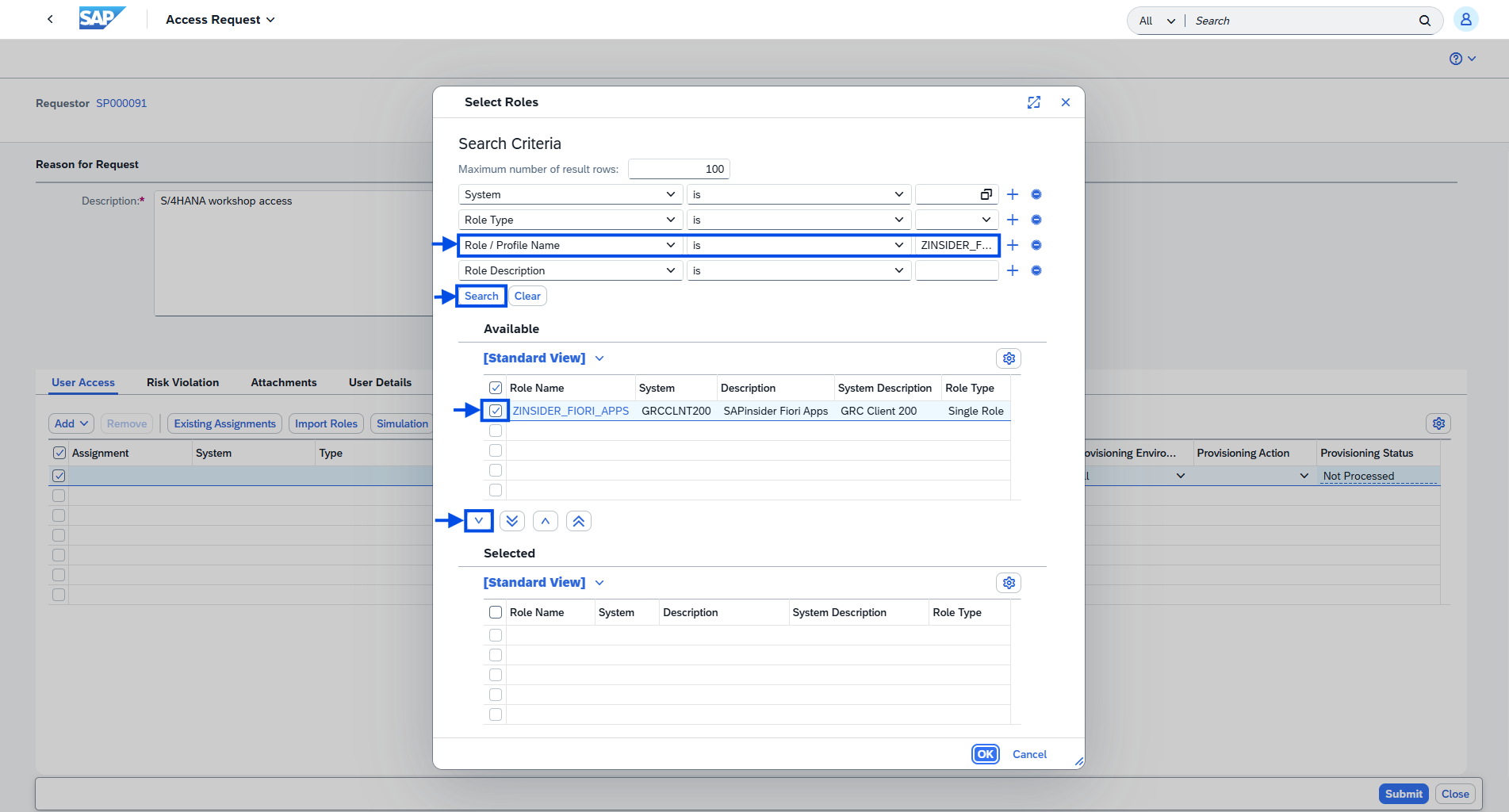
- Search for the role:
- Role / Profile Name –
ZINSIDER_FIORI_APPS
- Role / Profile Name –
- Select it and click the down arrow (∨) to Add, then OK to confirm.
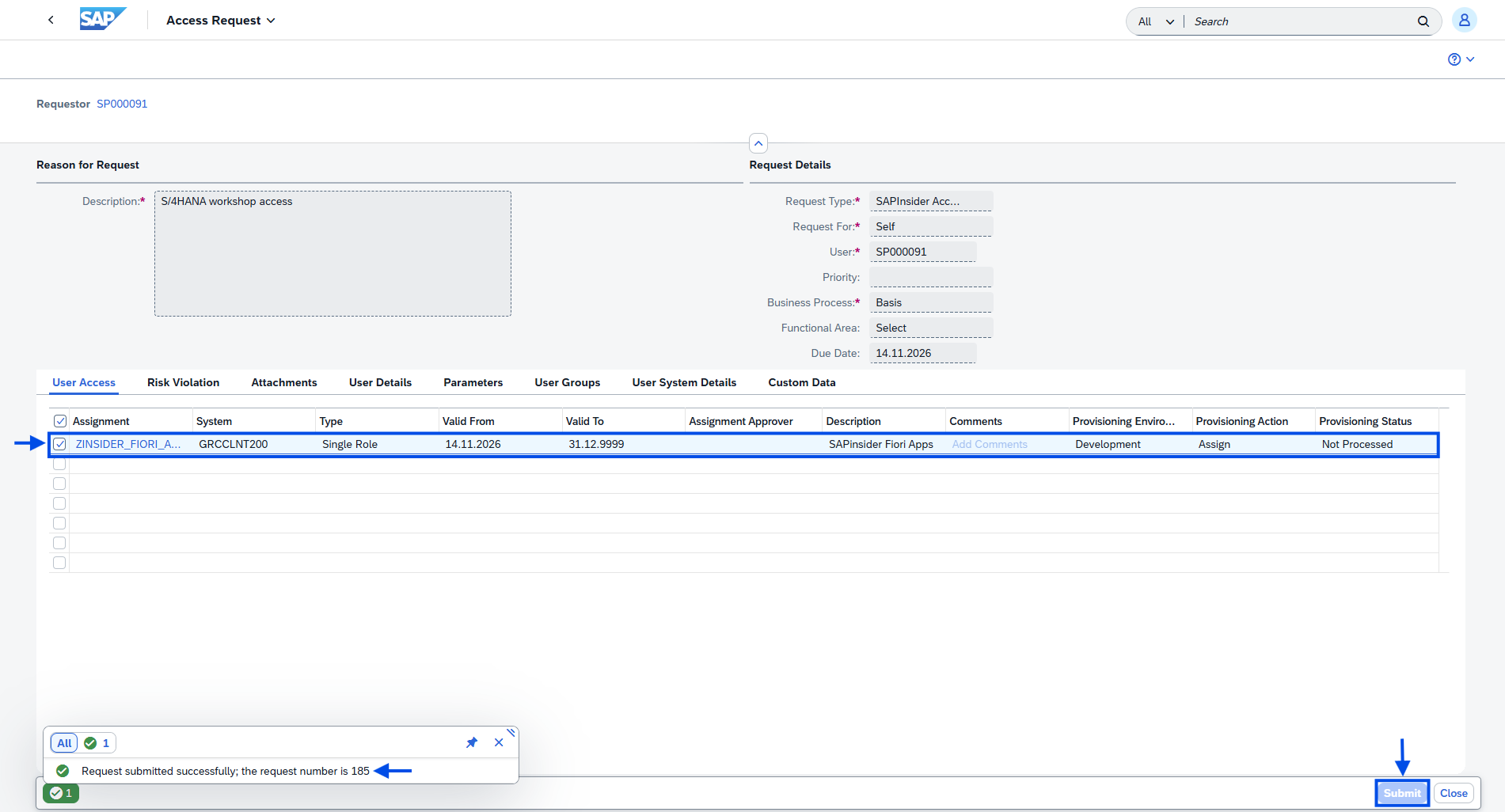
- Click Submit to trigger the request process.
Confirm it worked
- Write down the request number shown at the bottom of the screen.
💡 You'll see Request submitted successfully; the request number is XXX.
- Click Close.
- Click the Request Status tile. Your request shows as Approved.
💡 Optional: open the provisioning log to see the role assignment marked Success.
- Back on the launchpad, one new app tile appears: Repository Sync — the app you'll use in Exercise 2 to load your SAP BTP system's data from ROI iAM into SAP GRC.
Next
Continue with Exercise 2: Onboard your SAP BTP subaccount and request a Role Collection assignment.