

Exercise 2: Onboard your SAP BTP subaccount
What you'll do
Bring your own SAP BTP subaccount fully under governance. You register it in ROI iAM as both a source and a target system, load the subaccount's seeded application role collections, sync it into SAP GRC, then request a role — which ROI iAM provisions straight back into SAP BTP, with no approval step.
Log in to ROI iAM
Open ROI iAM and log in with:
Field Your value User sapinsider26denNN@roiable.comPassword <workshop-password>— provided at the session
Look at your starting point
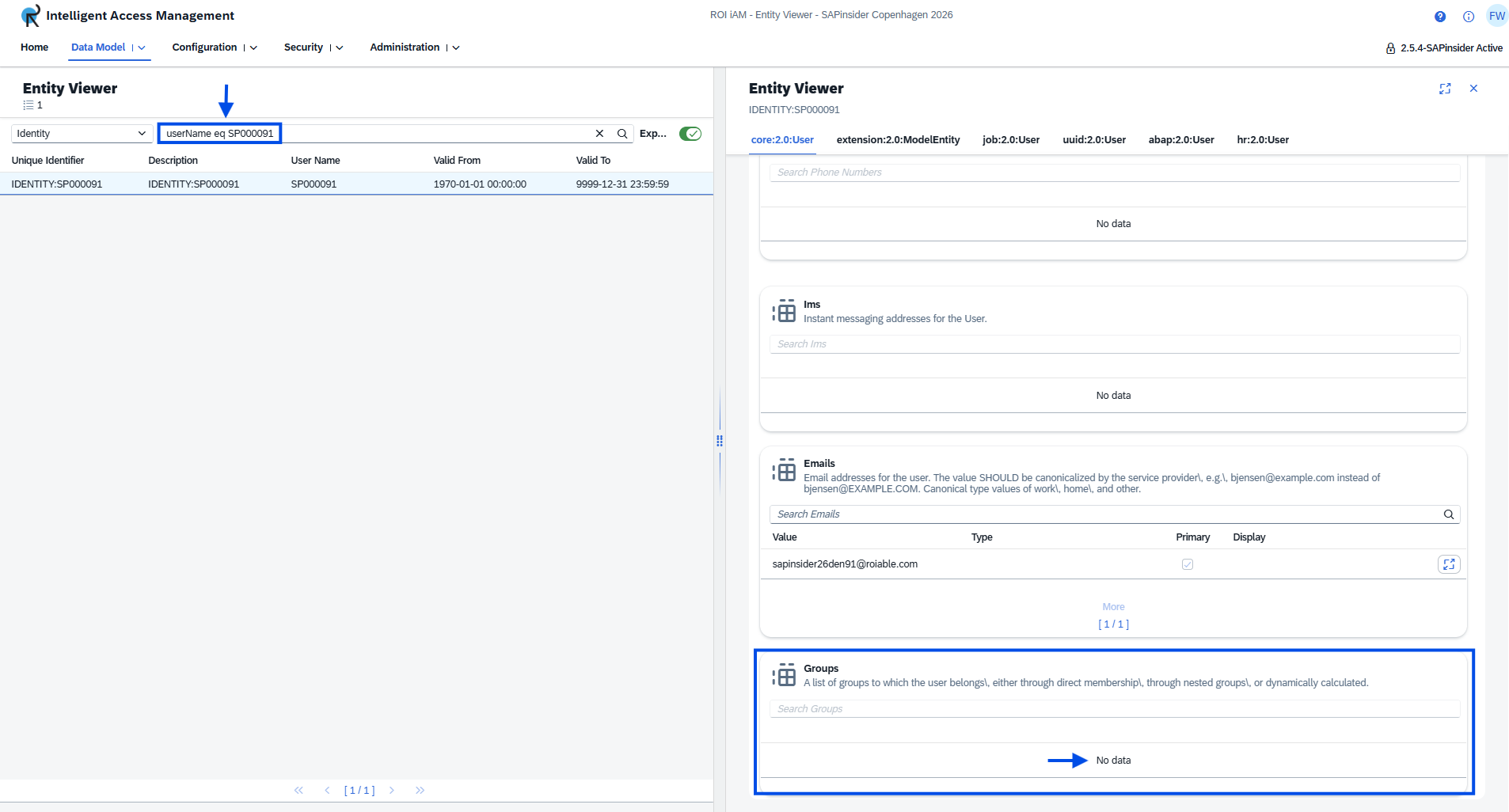
- Go to Data Model → Entity Viewer and filter with:
userName eq SP0000NN
- Select your user, then scroll down to the Groups table.
💡 It should be empty — you don't have any access yet.
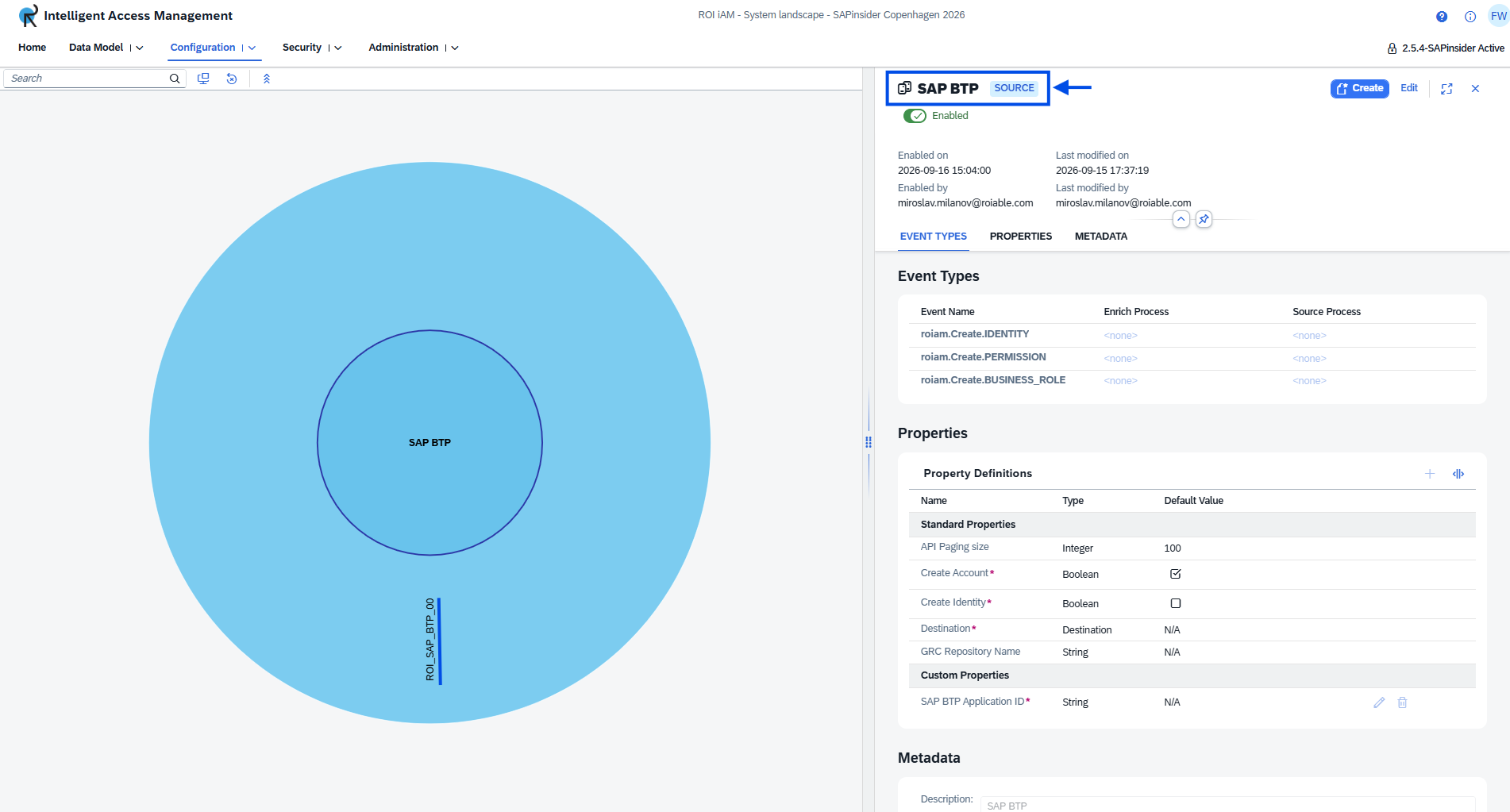
- Go to Configuration → System Landscape → Source → SAP BTP repository type.
💡 Your repository
ROI_SAP_BTP_NNis not there yet — you'll create it below.
Check your SAP BTP subaccount
Open your SAP BTP subaccount and log in with:
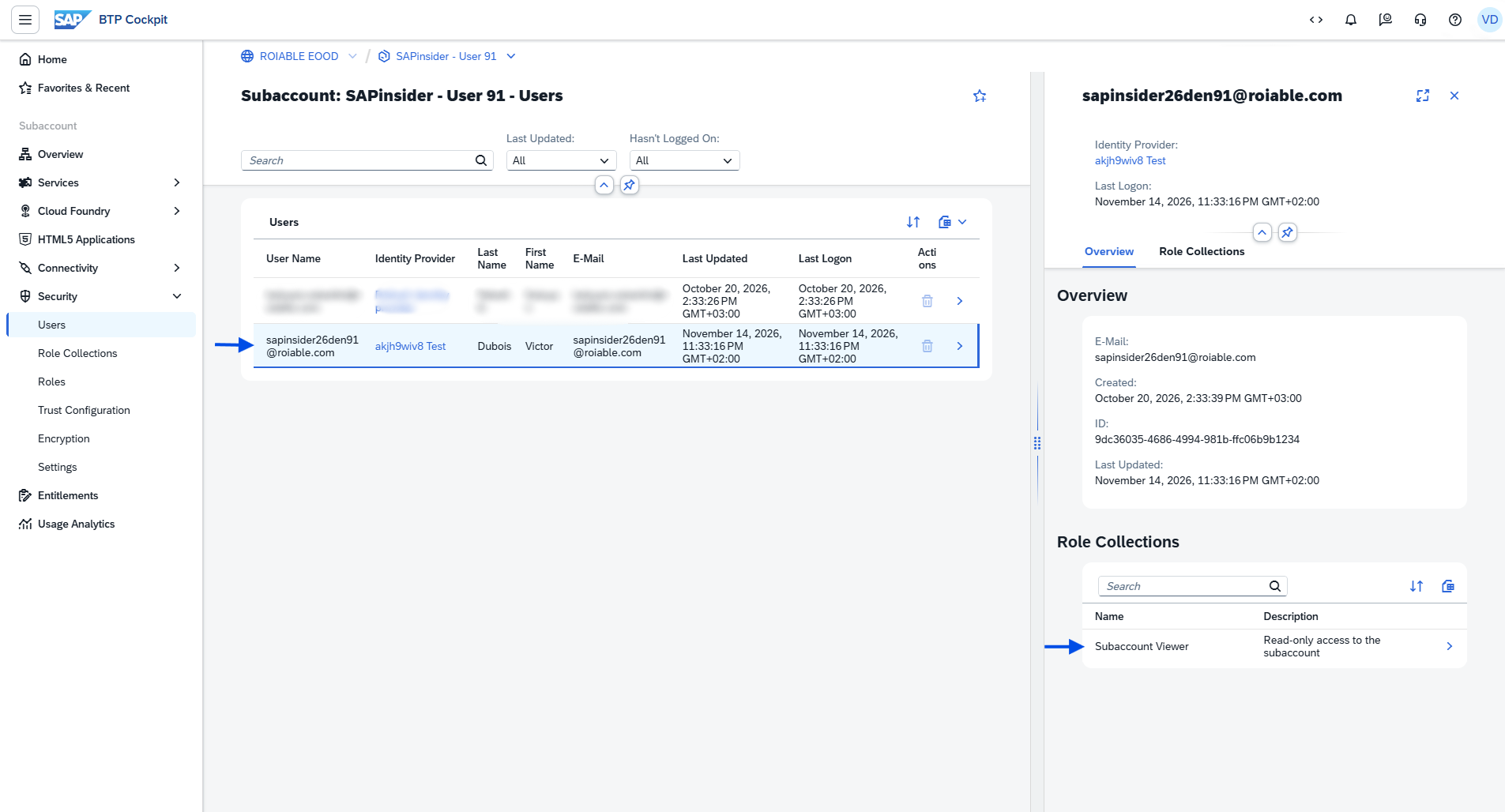
Field Your value User sapinsider26denNN@roiable.comPassword <workshop-password>— provided at the sessionGo to Security → Users and find your user.
💡 It only has the Subaccount Viewer role collection so far.
Create the source repository in ROI iAM
Why this step
You're connecting ROI iAM to your specific SAP BTP subaccount as a source — the system ROI iAM reads from. Once connected, ROI iAM can load the subaccount's seeded application role collections. The later steps then make those role collections available for SAP GRC to sync, so people can request them through SAP GRC self-service.
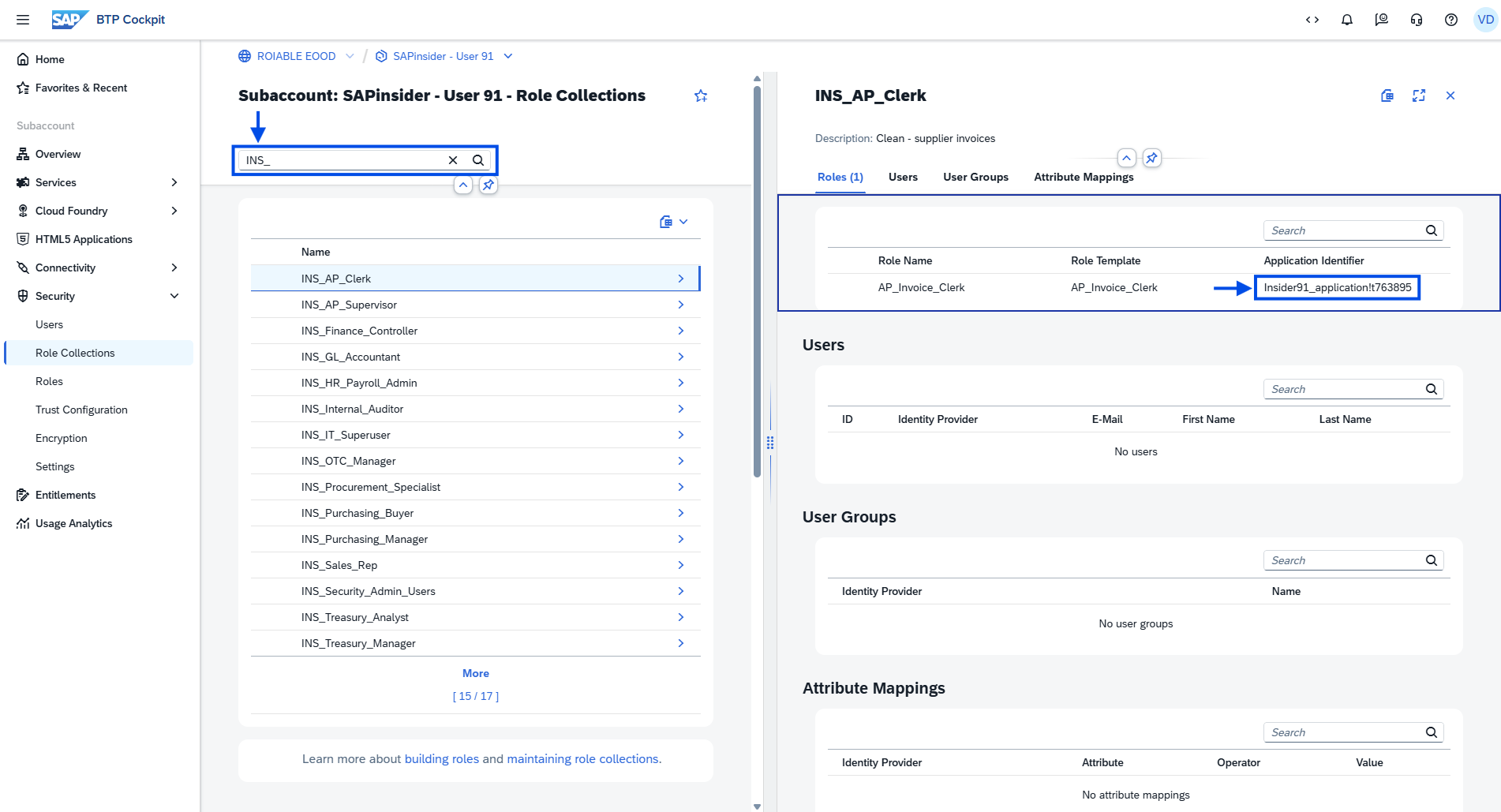
In your SAP BTP subaccount, go to Security → Role Collections.
Filter for
INS_.Open the details of any role collection and copy its Application Identifier.
💡 Keep it handy — you'll need it again when you create the target repository.
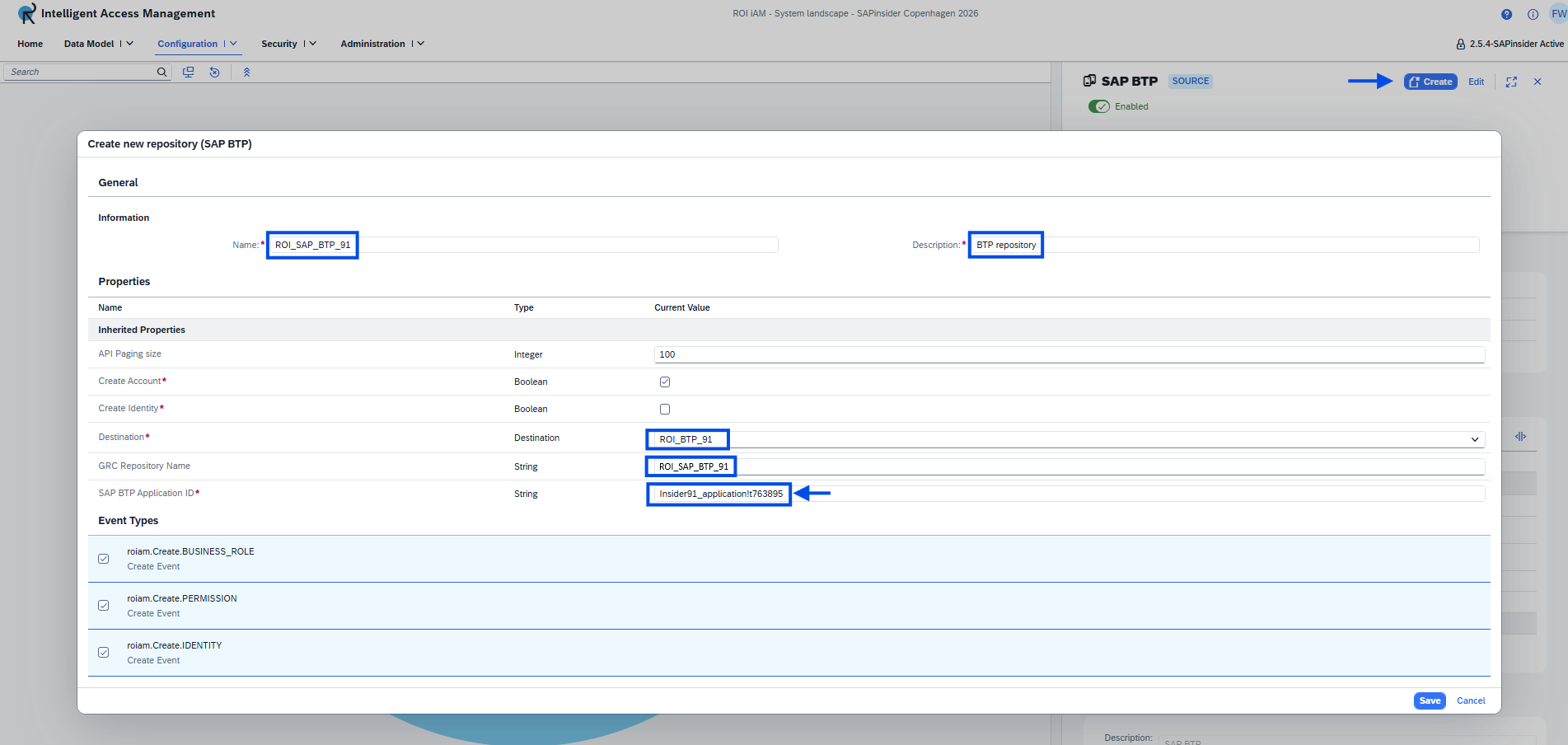
In ROI iAM, go to Configuration → System Landscape → Source → SAP BTP repository type and click Create to define your Source SAP BTP repository:
- Name –
ROI_SAP_BTP_NN - Description –
BTP repository - Destination –
ROI_BTP_NN - GRC repository name –
ROI_SAP_BTP_NN - SAP BTP Application ID – the identifier you copied (
InsiderNN_application!XXXXXX)
- Name –
Leave the event settings as they are and click Save.
💡 New repositories start out disabled — you enable it in the next step.
Run the initial load
Why this step
The source repository is connected, but no data has moved yet. The Initial Load is the first read: ROI iAM pulls your subaccount's seeded application role collections in and stores them in its own data model. You then confirm they arrived in the Entity Viewer before handing them on to SAP GRC.
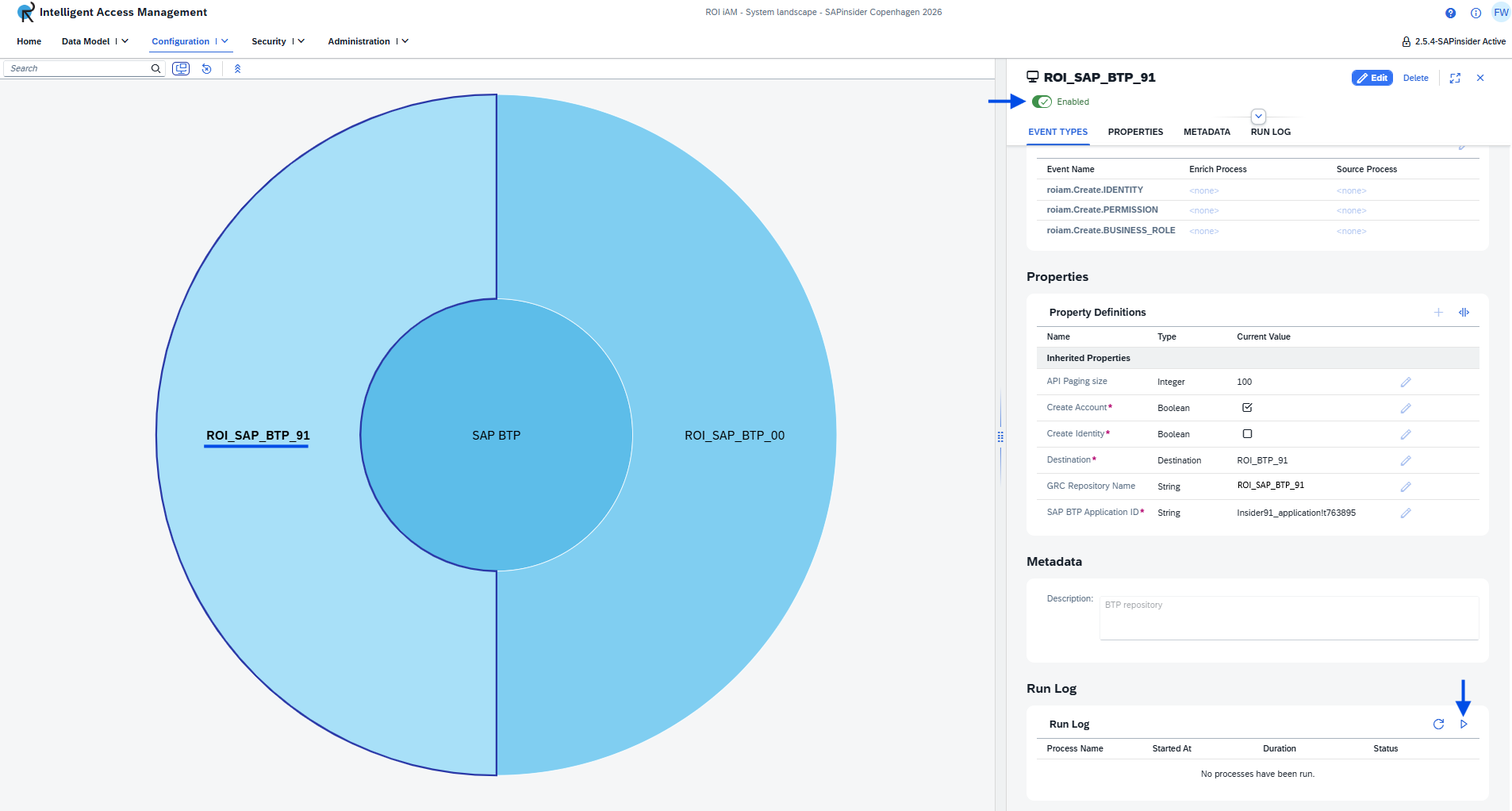
Enable the repository.
Scroll down to the Run Log and click the play icon (Run process).
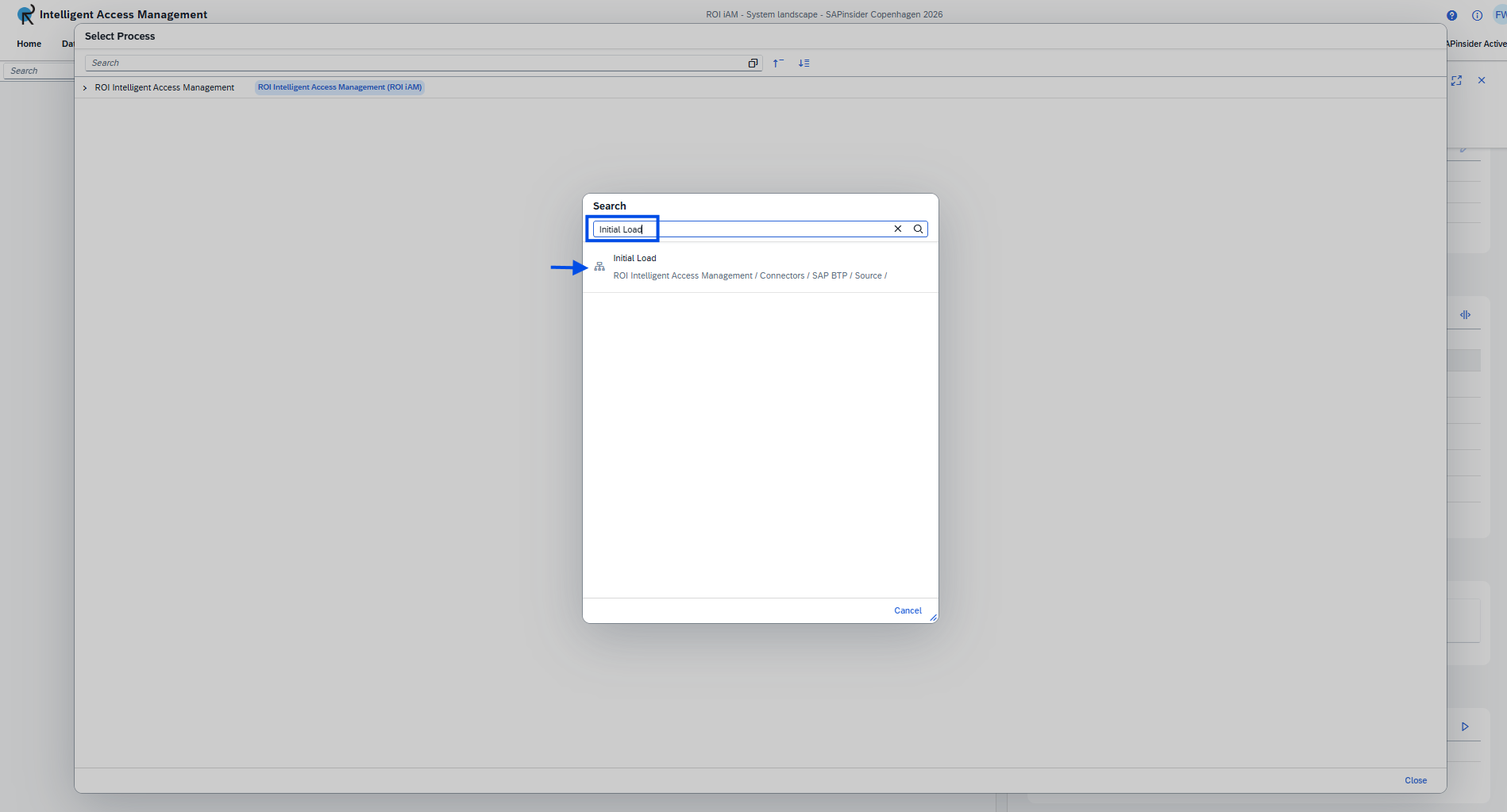
Search for
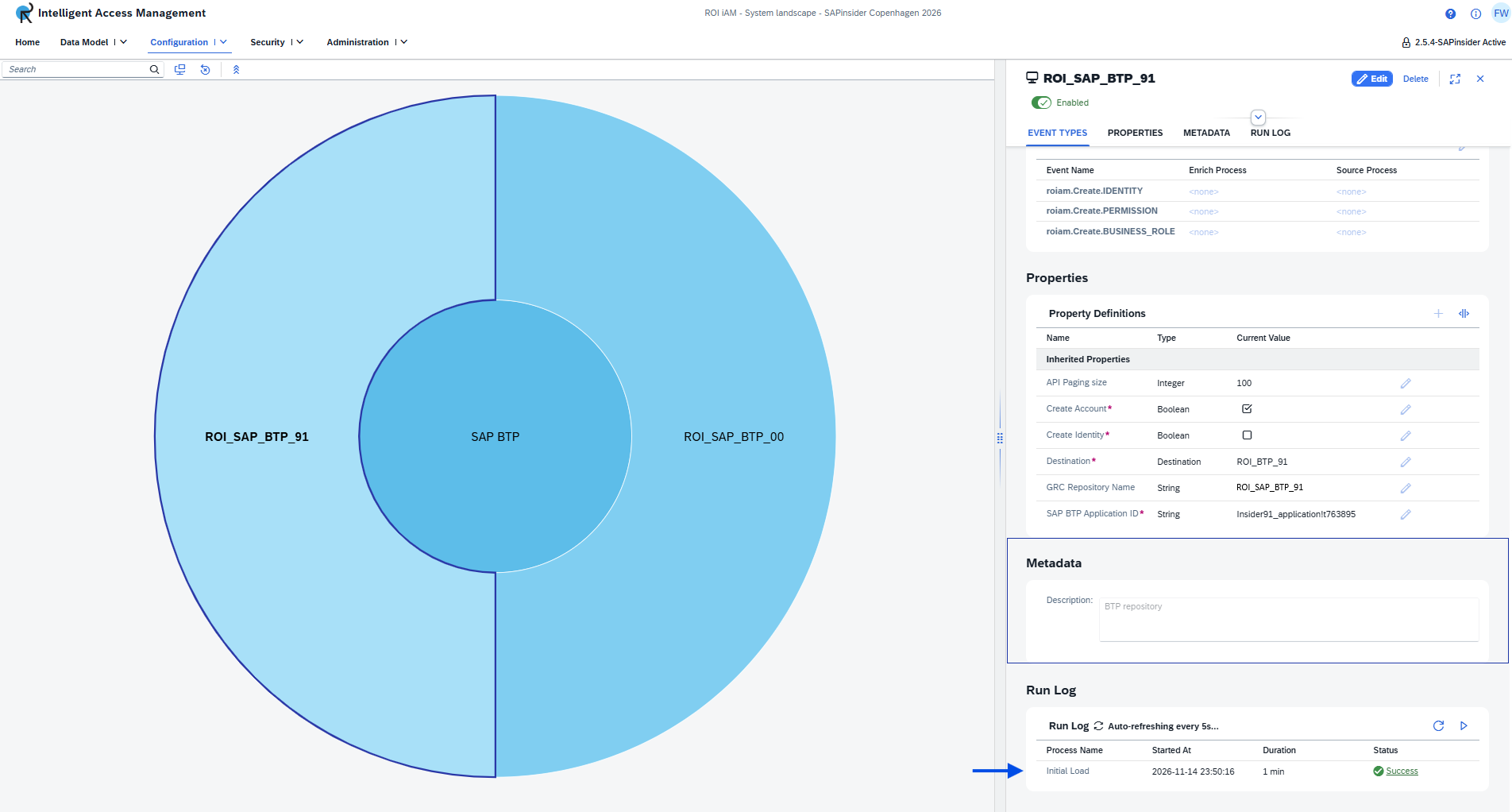
Initial Load, select it, and confirm you want to execute the process against your repository.Wait until the status in the Run Log is Success.
💡 This can take a minute or two. The Run Log auto-refreshes, so you don't need to reload.
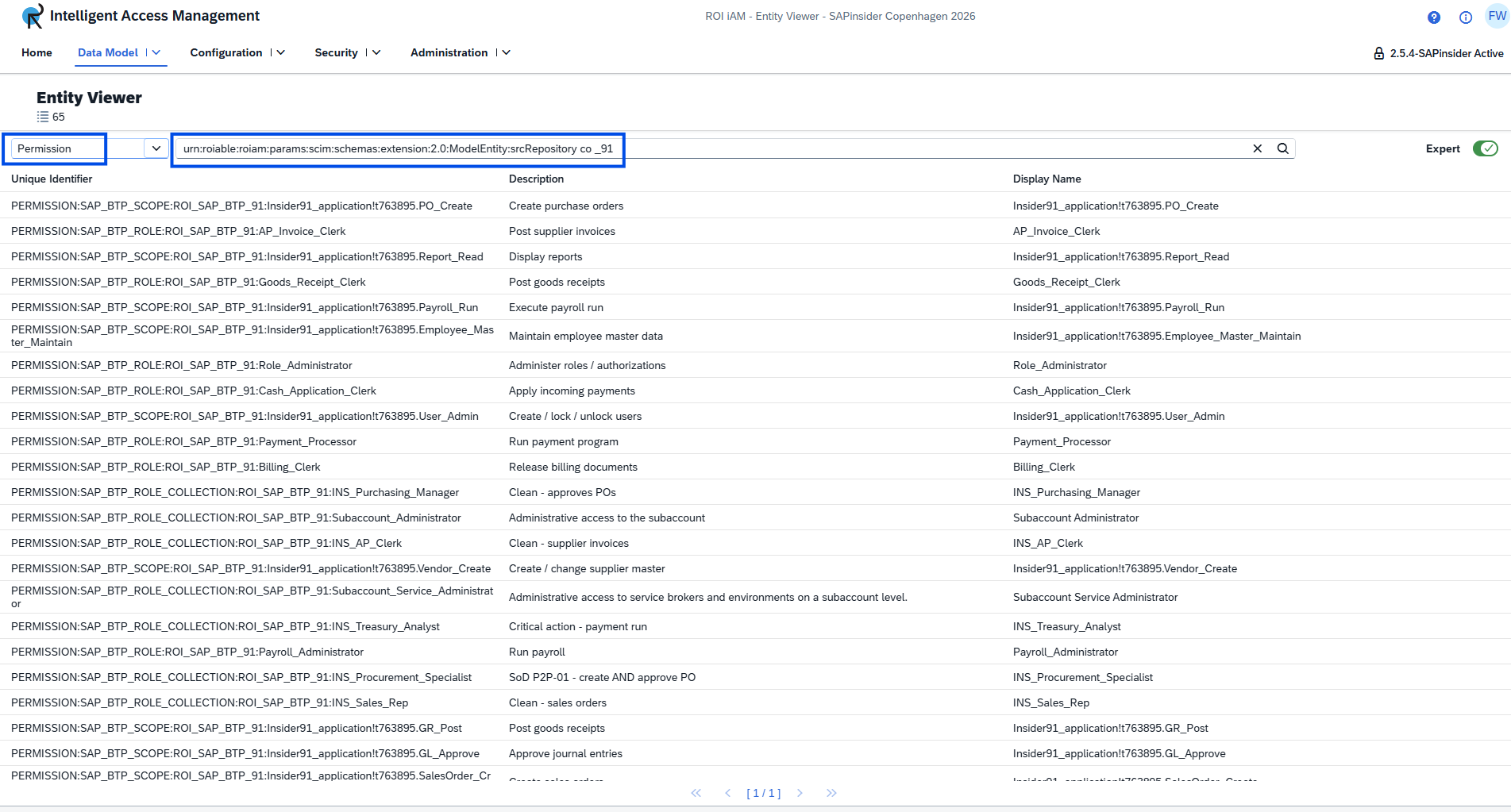
Go to Data Model → Entity Viewer, choose the Permission model entity, and filter with:
urn:roiable:roiam:params:scim:schemas:extension:2.0:ModelEntity:srcRepository co _NN💡 You now see the seeded application role collections loaded from your subaccount.
Create the target repository in ROI iAM
Why this step
The source let ROI iAM read from your subaccount. A target is the other direction — the system ROI iAM writes to when it provisions access. You need this so that, later, a role requested through SAP GRC is actually granted back in your SAP BTP subaccount.
- In ROI iAM, go to Configuration → System Landscape → Targets → SAP BTP repository type and click Create to define your Target SAP BTP repository:
- Name –
ROI_SAP_BTP_NN - Description –
BTP repository - Destination –
ROI_BTP_NN - GRC repository name –
ROI_SAP_BTP_NN - SAP BTP Application ID – the same identifier you copied earlier (
InsiderNN_application!XXXXXX)
- Name –
- Click Save, then Enable the repository.
💡 Like the source, a new target starts out disabled — enabling it makes it ready to provision to.
Bring your SAP BTP system into SAP GRC
Why this step
ROI iAM now knows your subaccount and its role collections, but SAP GRC doesn't yet. The Repository Sync copies that catalogue into SAP GRC, so your SAP BTP roles show up as requestable in SAP GRC access requests — the next step.
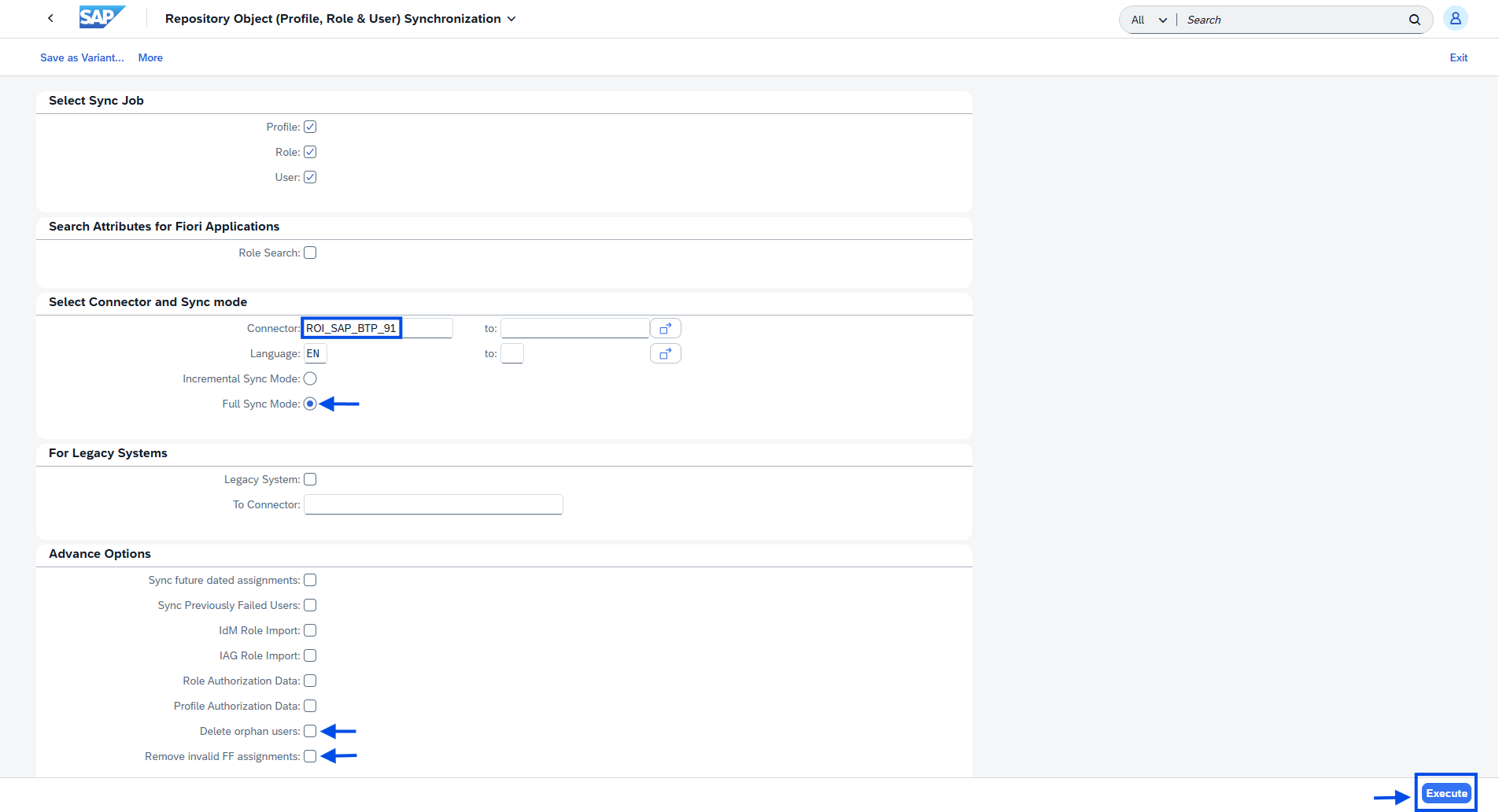
- In the SAP GRC Fiori Launchpad, open the Repository Sync tile and set:
- Connector –
ROI_SAP_BTP_NN - Full Sync Mode – selected
- Advanced Options – untick Delete orphan users and Remove invalid FF assignments
- Connector –
- Click Execute.
Request a SAP BTP role collection from SAP GRC
Why this step
Everything is wired up: the source loaded the role collections, the target can receive provisioning, and SAP GRC has the catalogue. Now you do what any end user would — request a SAP BTP role collection through SAP GRC self-service and watch ROI iAM grant it back in your subaccount.
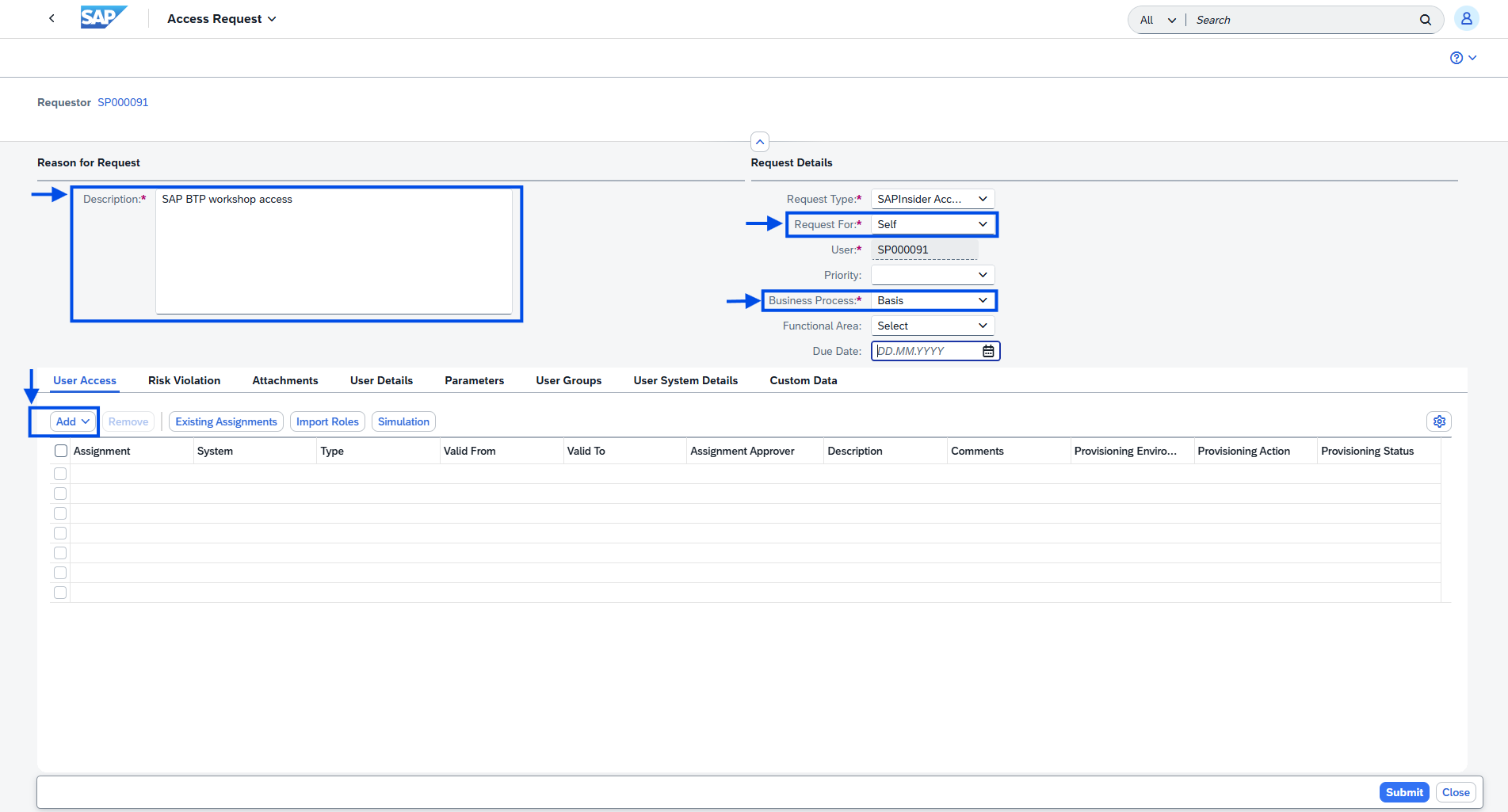
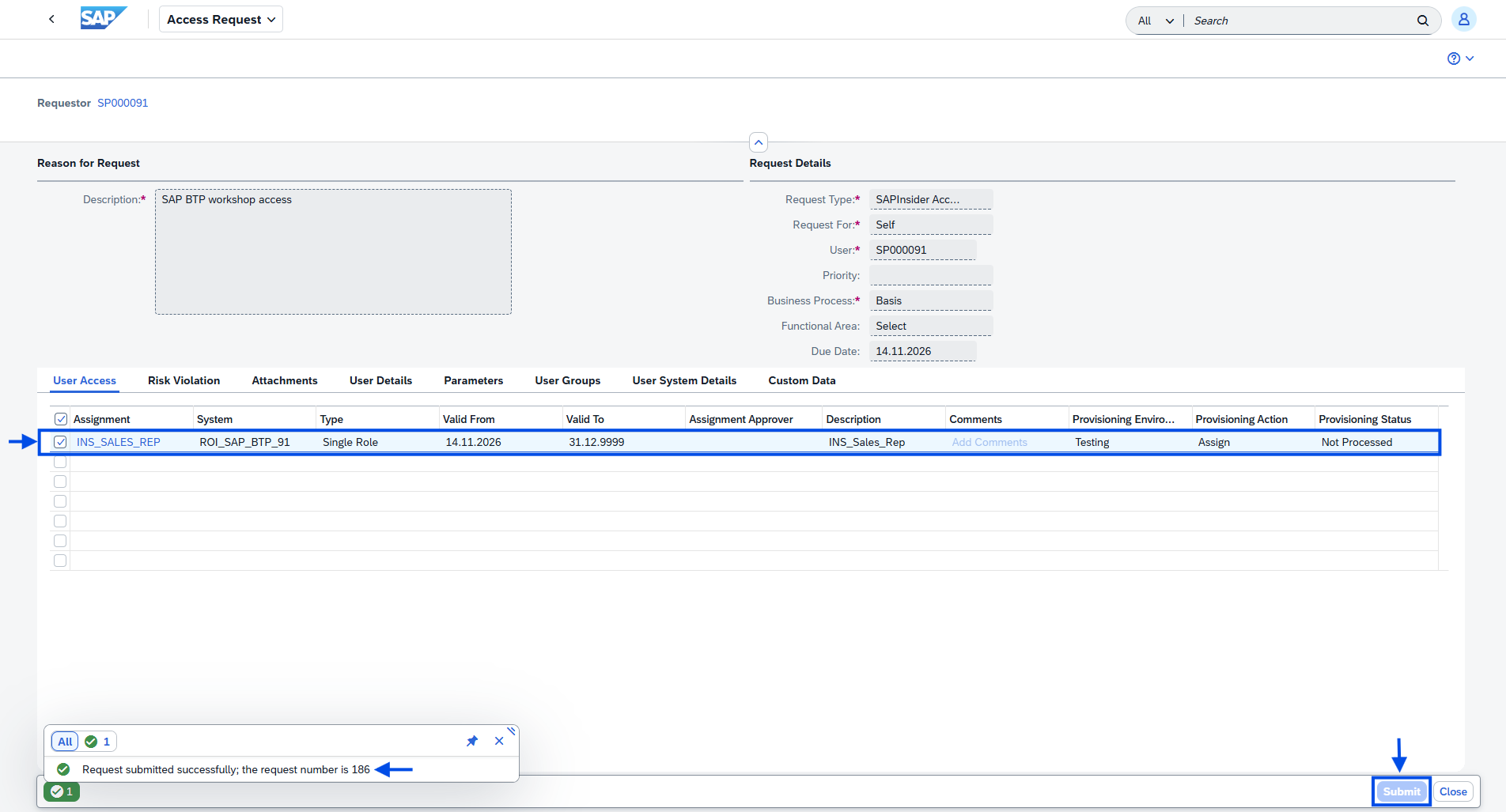
- Click the Access Request tile. The request is already set to Self (you're requesting for your own user).
- Fill in the Reason for Request:
- Description –
SAP BTP workshop access
- Description –
- Fill in the Request Details:
- Business Process –
Basis
- Business Process –
- In the User Access section, click Add → Role.
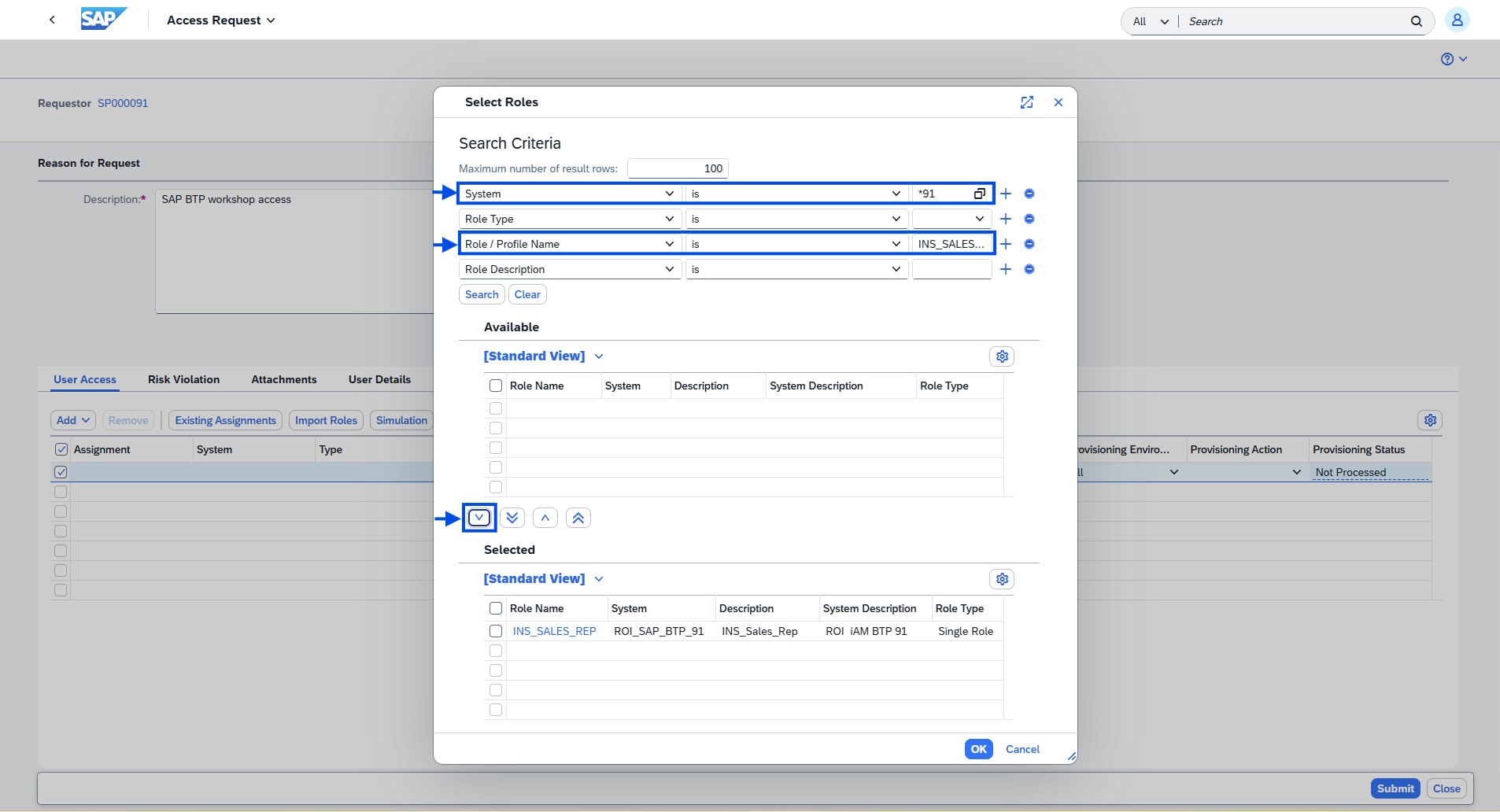
- Search for the role:
- System –
*NN - Role / Profile Name –
INS_SALES_REP
- System –
- Select it and click the down arrow (∨) to Add, then OK to confirm.
- Click Submit to trigger the request process, then write down the request number.
💡 There is no approval step, so ROI iAM provisions the role collection directly. You'll use the request number to track it in the next section.
Confirm it worked
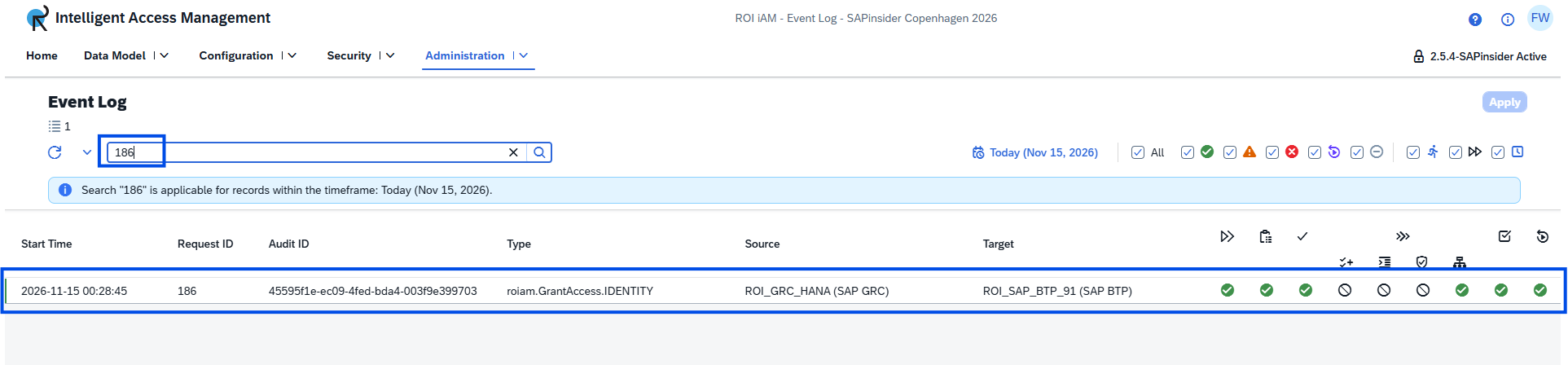
In ROI iAM, open Administration → Event Log and filter by your GRC request number.
💡 Use the refresh button to watch the event move through its statuses if it's still in progress.
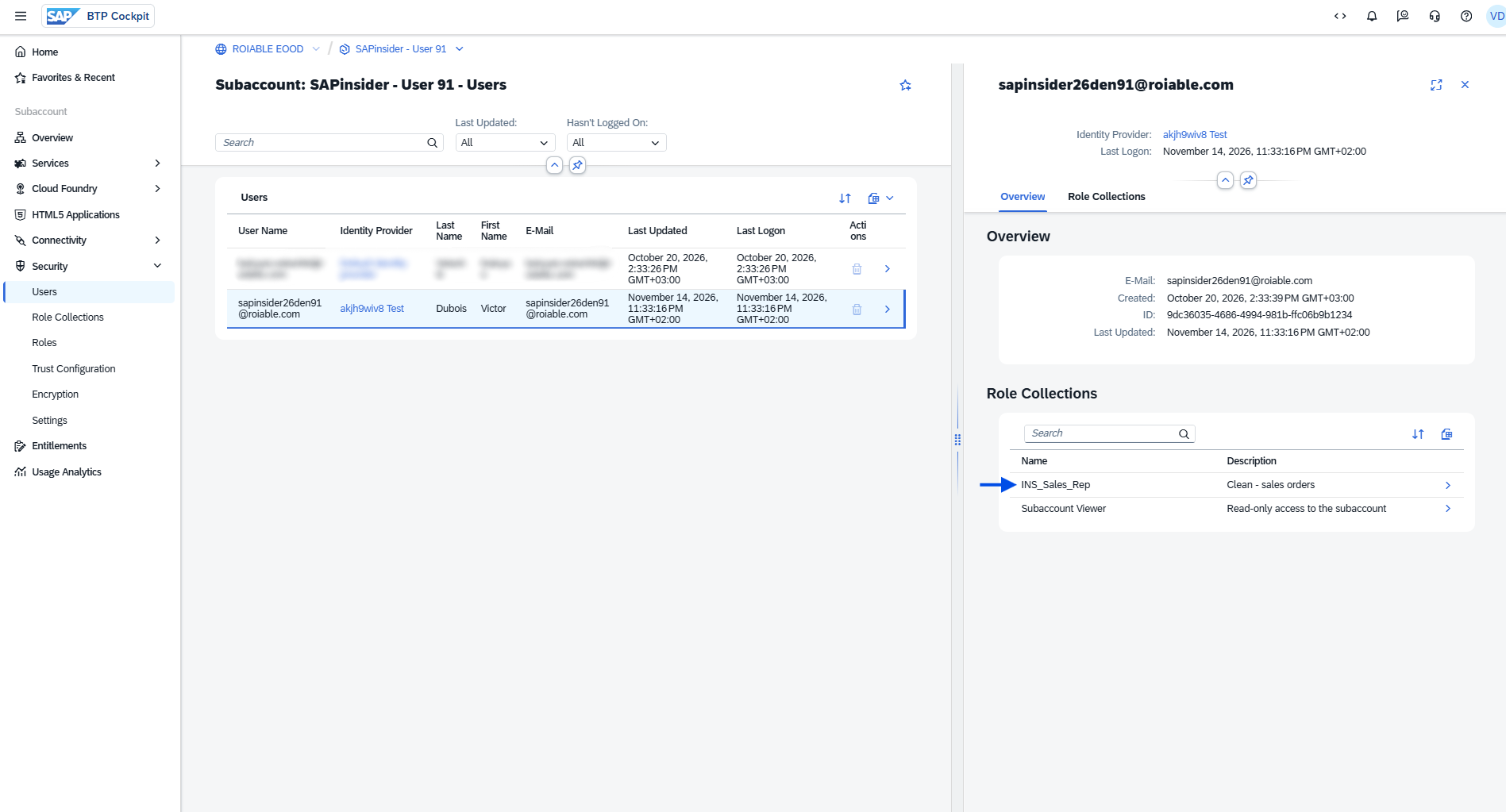
In your SAP BTP subaccount, go to Security → Users.
💡 Your user now has the INS_Sales_Rep role collection.
Next
Continue with Exercise 3: Request Salesforce account and a Permission Set Group assignment.