

Exercise 3: Request Salesforce account and access
What you'll do
From a single SAP GRC access request, give yourself both a Salesforce account and a Permission Set Group — provisioned by ROI iAM, with no approval step. Everyone shares one Salesforce system, already connected to SAP GRC and ROI iAM.
Build and submit the request
Why this step
Salesforce is already connected to SAP GRC and ROI iAM, so you don't onboard anything here. You just request access the way any end user would — one SAP GRC request that provisions both your Salesforce account and a Permission Set Group in one go.
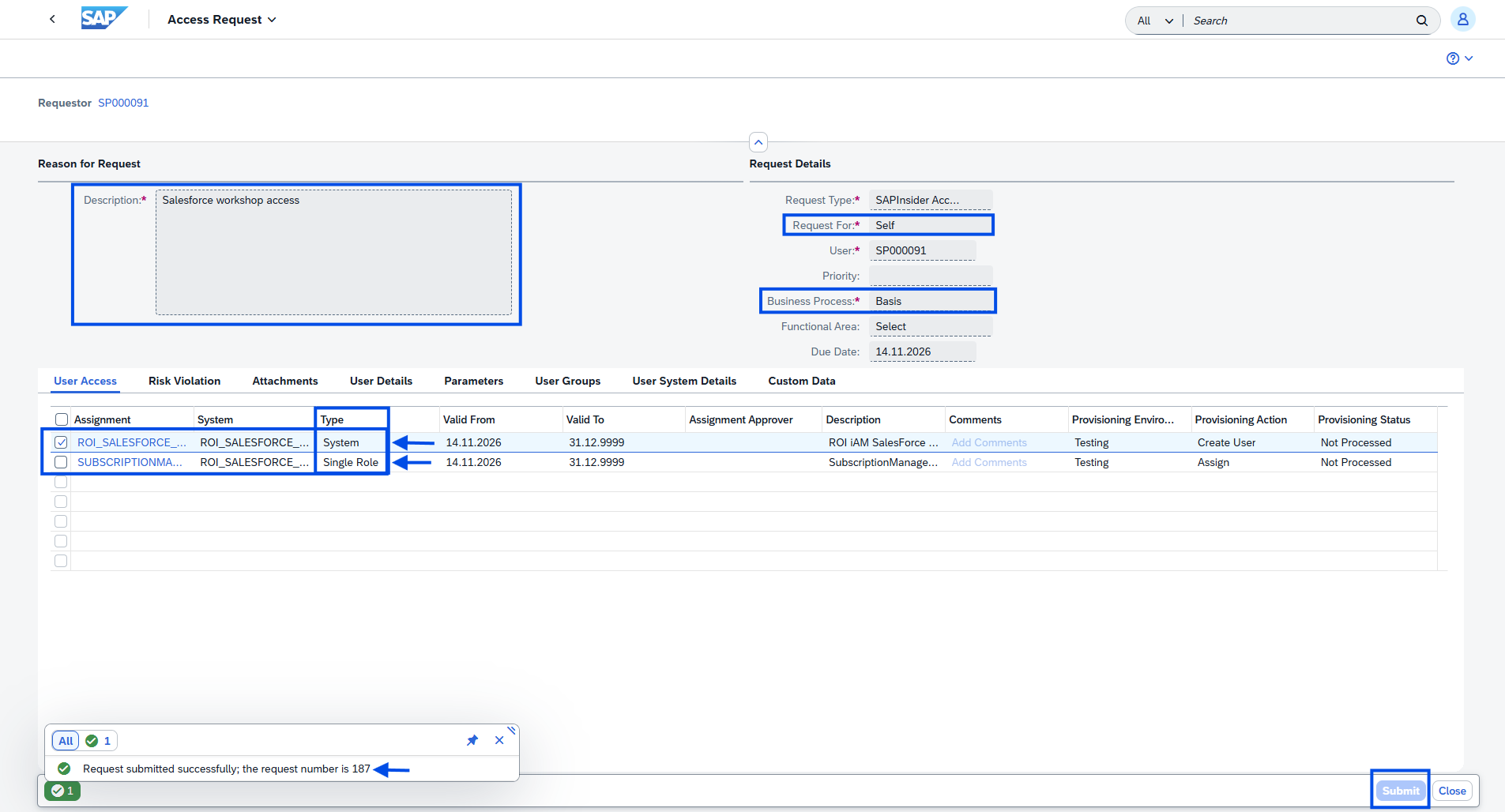
- In the SAP GRC Fiori Launchpad, open the Access Request tile. The request is already set to Self (you're requesting for your own user).
- Fill in the Reason for Request:
- Description –
Salesforce workshop access
- Description –
- Fill in the Request Details:
- Business Process –
Basis
- Business Process –
- In the User Access section, click Add → System, then search for the system:
- System –
ROI_SALESFORCE_TEST
- System –
- Select it and click the right arrow (>) to Add, then OK to confirm.
- Click Add → Role, then search for the Permission Set Group:
- System –
ROI_SALESFORCE_TEST - Role / Profile Name –
SUBSCRIPTIONMANAGEMENTTAXADMIN
- System –
- Select it and click the down arrow (∨) to Add, then OK to confirm.
- Click Submit to trigger the request process, then write down the request number.
💡 There is no approval step, so ROI iAM provisions the account and Permission Set Group directly. You'll use the request number to track it in the next section.
Confirm it worked
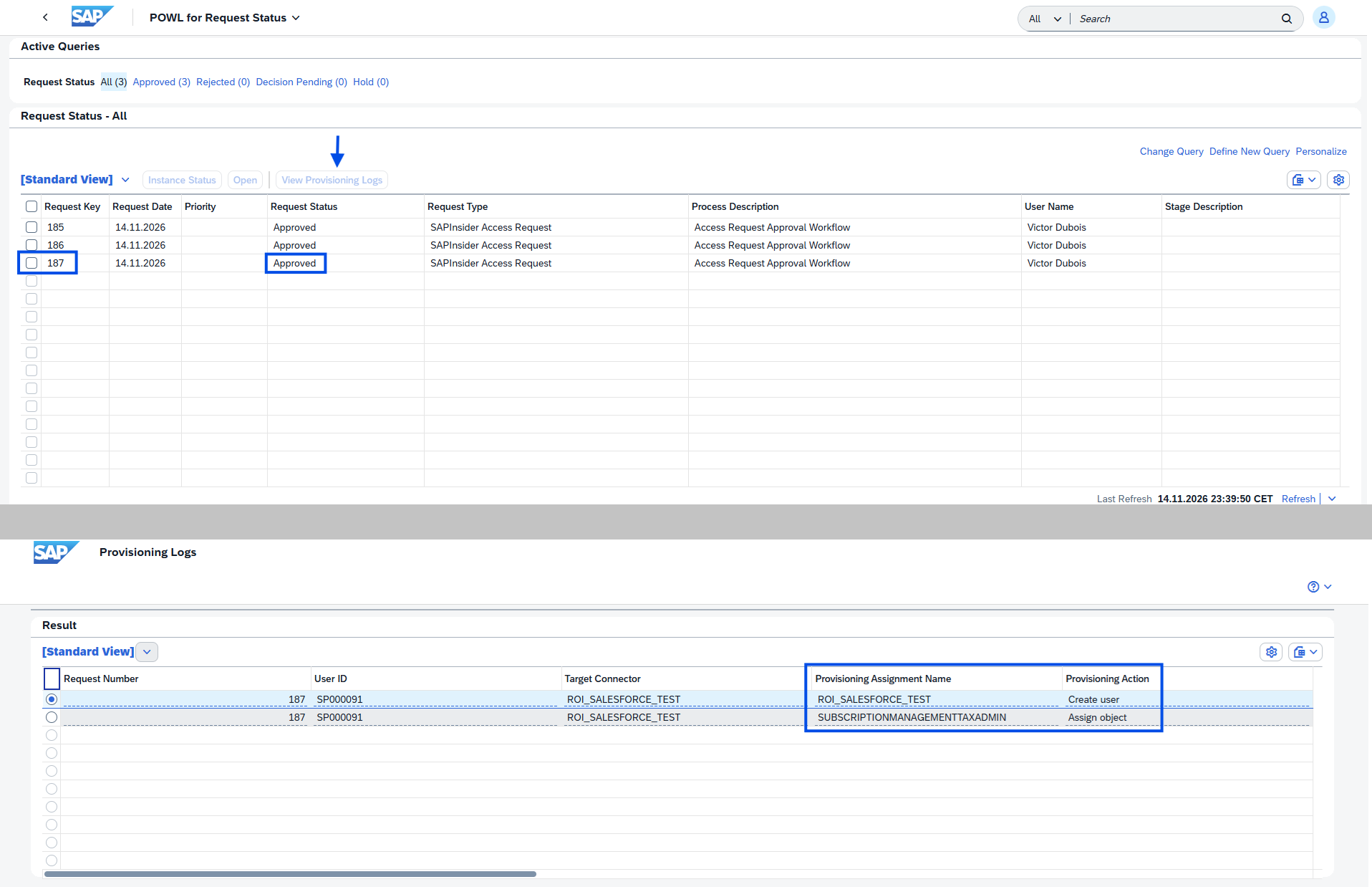
In the SAP GRC Fiori Launchpad, open the Request Status tile and search by your request number.
💡 Or open the My Profile tile to see the Permission Set Group on your own user.
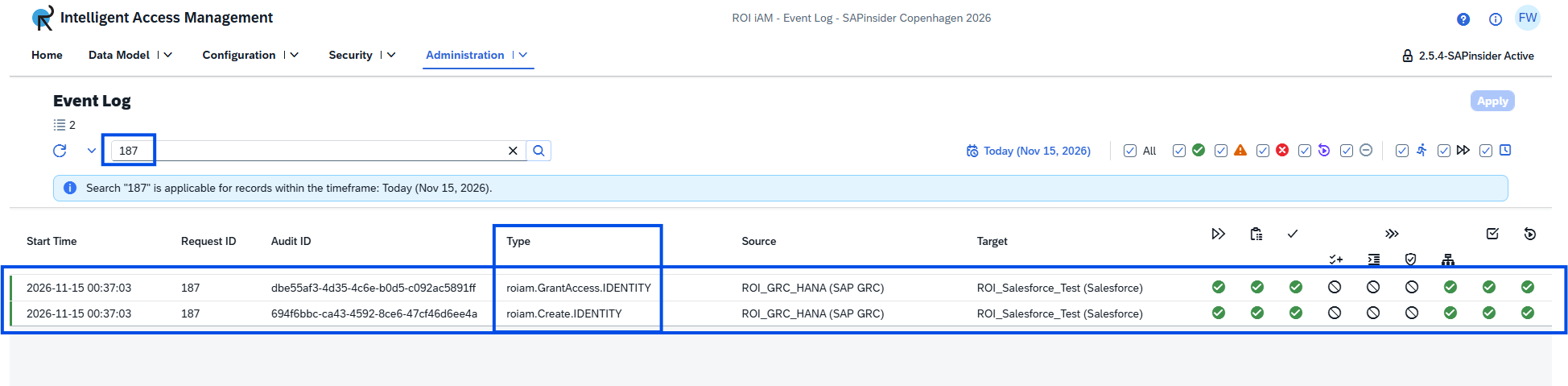
In ROI iAM, open Administration → Event Log and filter by your request number.
💡 Or open the Entity Viewer to see the new access on your user.
Next
Continue with Exercise 4: Cross-system risk analysis across SAP S/4HANA and SAP BTP with SAP GRC.